
Help Guide: Starting a Tournament Assignment
Follow the steps below to access and start your tournament assignment:
1. Navigate to "My Assignments"
- Open the left menu of the platform.
- Click on "My Assignments" to view all your assigned tasks.
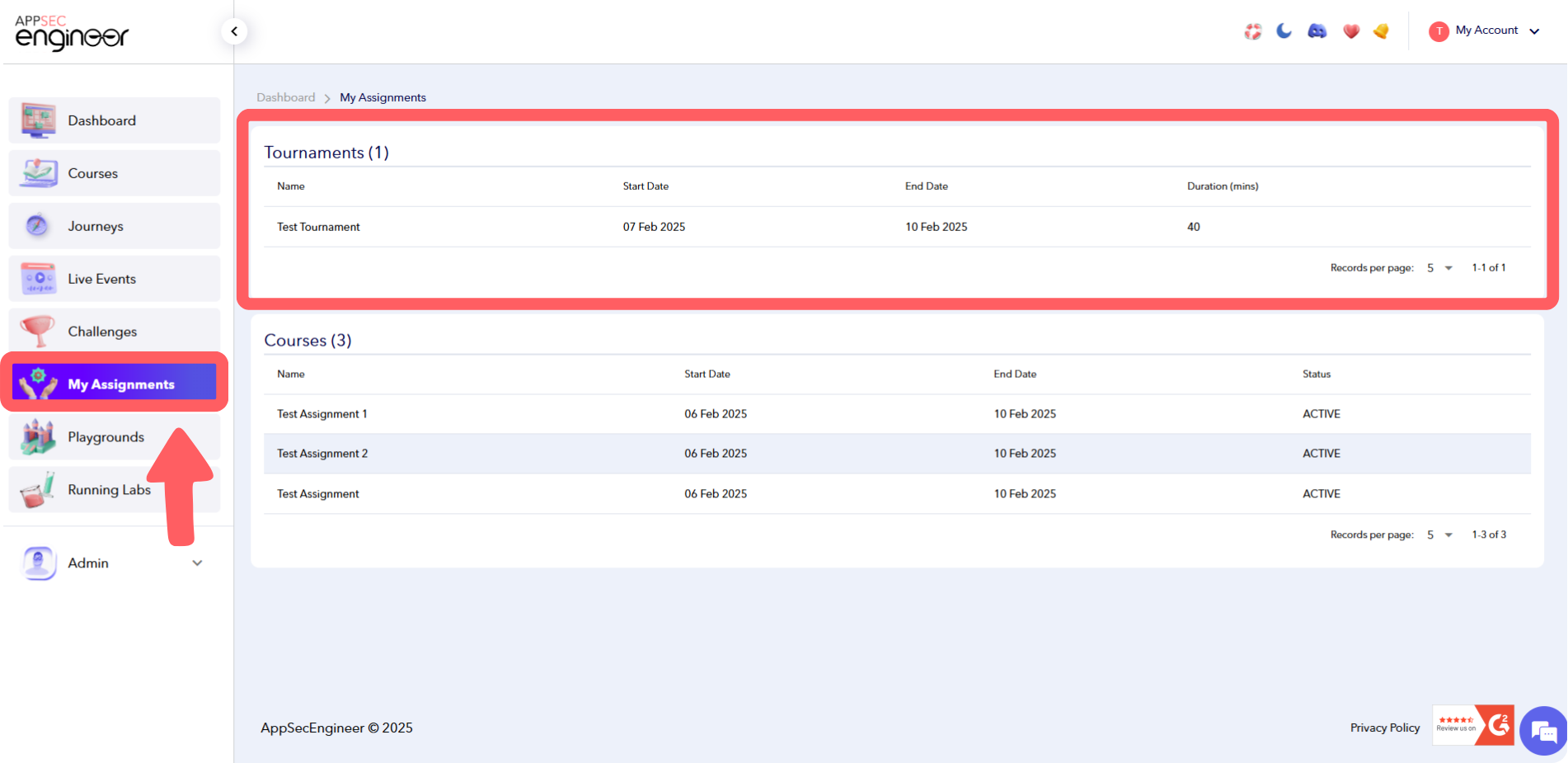 This screenshot shows the user opening the left menu on the AppSecEngineer platform and selecting 'My Assignments' to view all the tasks and courses assigned to them.
If you need help with assignments, check out how to Find an assignment.
2. View Assessments Category-Wise
- Once on the "My Assignments" page, you'll see a list of all assessments organized by category.
- Identify the "Tournament Assignments" category.
3. Select Your Tournament Assignment
- Find and click on the tournament assignment that has been assigned to you.
4. Start the Tournament
- After selecting your tournament assignment, you will see a detailed page for the assignment.
- Click on the "Start the Tournament" button to begin.
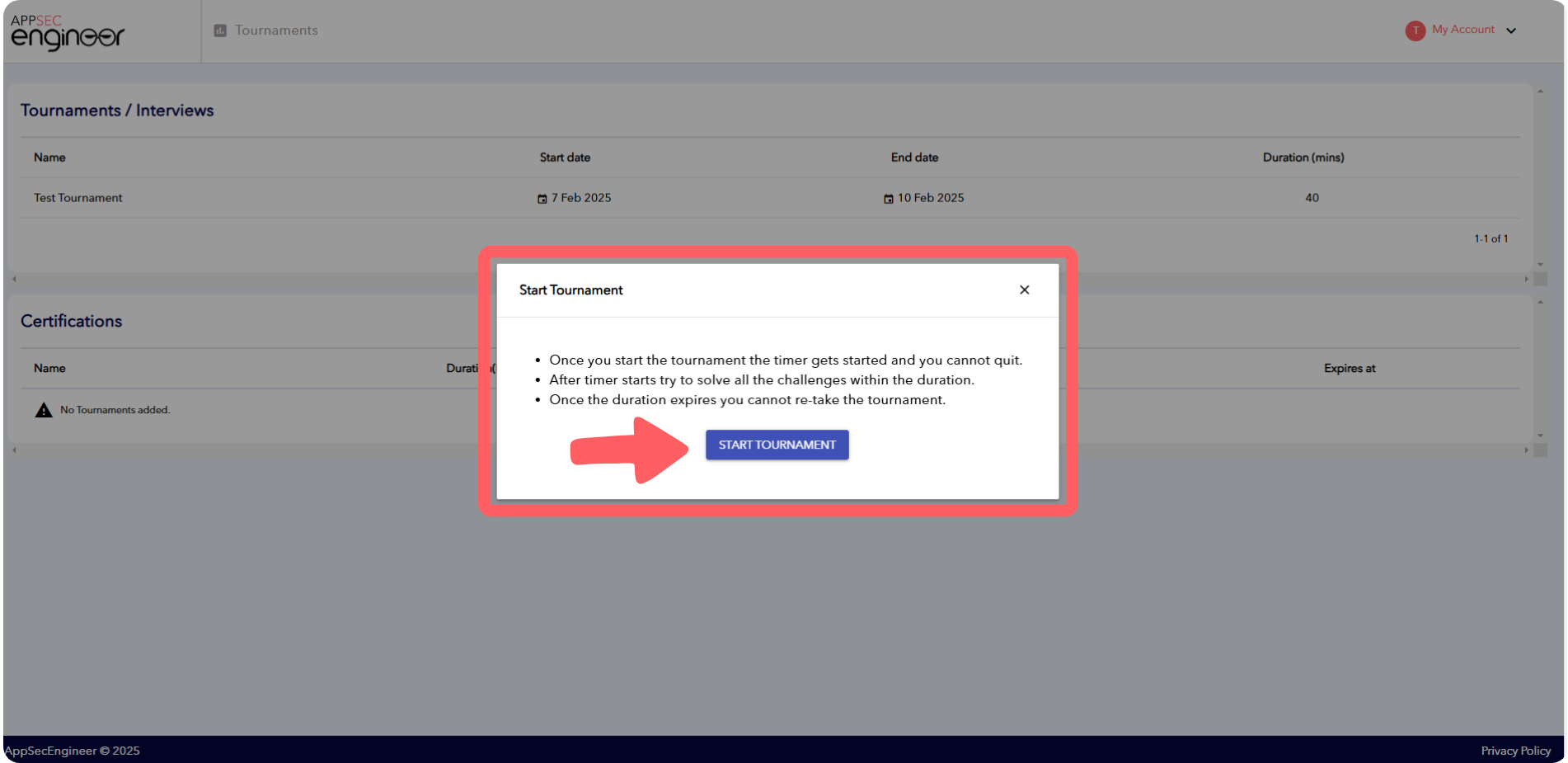 This screenshot shows the user viewing the detailed tournament assignment page and clicking the 'Start the Tournament' button to begin the tournament in the AppSecEngineer platform.
Once you’ve completed your tournament assignment, you might have other courses assigned to you. Learn how to get started in Taking a Course That Was Assigned to Me.
Tips:
- Ensure you have a stable internet connection before starting.
- Complete the tournament within the allocated time, if applicable.
- Contact support if you encounter any issues.