
Follow the step-by-step instructions below to access and start the course assigned to you:
-
Access the Left Menu:
- Navigate to the Left Menu on your dashboard or application interface.
-
Go to My Assignments:
- Click on "My Assignments" from the left menu.
 This screenshot shows the user navigating to the left menu on the AppSecEngineer platform's dashboard and selecting 'My Assignments' to view their assigned tasks or courses.
- Click on "My Assignments" from the left menu.
-
View Assessments Category-Wise:
- In the "My Assignments" section, you will see a list of all assessments categorized based on their type or category.
- Browse through the categories to find the specific assessment you need.
-
Select a Course Assignment:
- From the list of assessments, locate the course assignment assigned to you.
- Click on the course assignment to open it.
 This screenshot shows the user locating their assigned course in the list of assessments and clicking on it to open and review the details in the AppSecEngineer platform.
-
Open the Assigned Course:
- Once the course assignment opens, click on the name of the course that has been assigned to you. This will take you to the course details page.
-
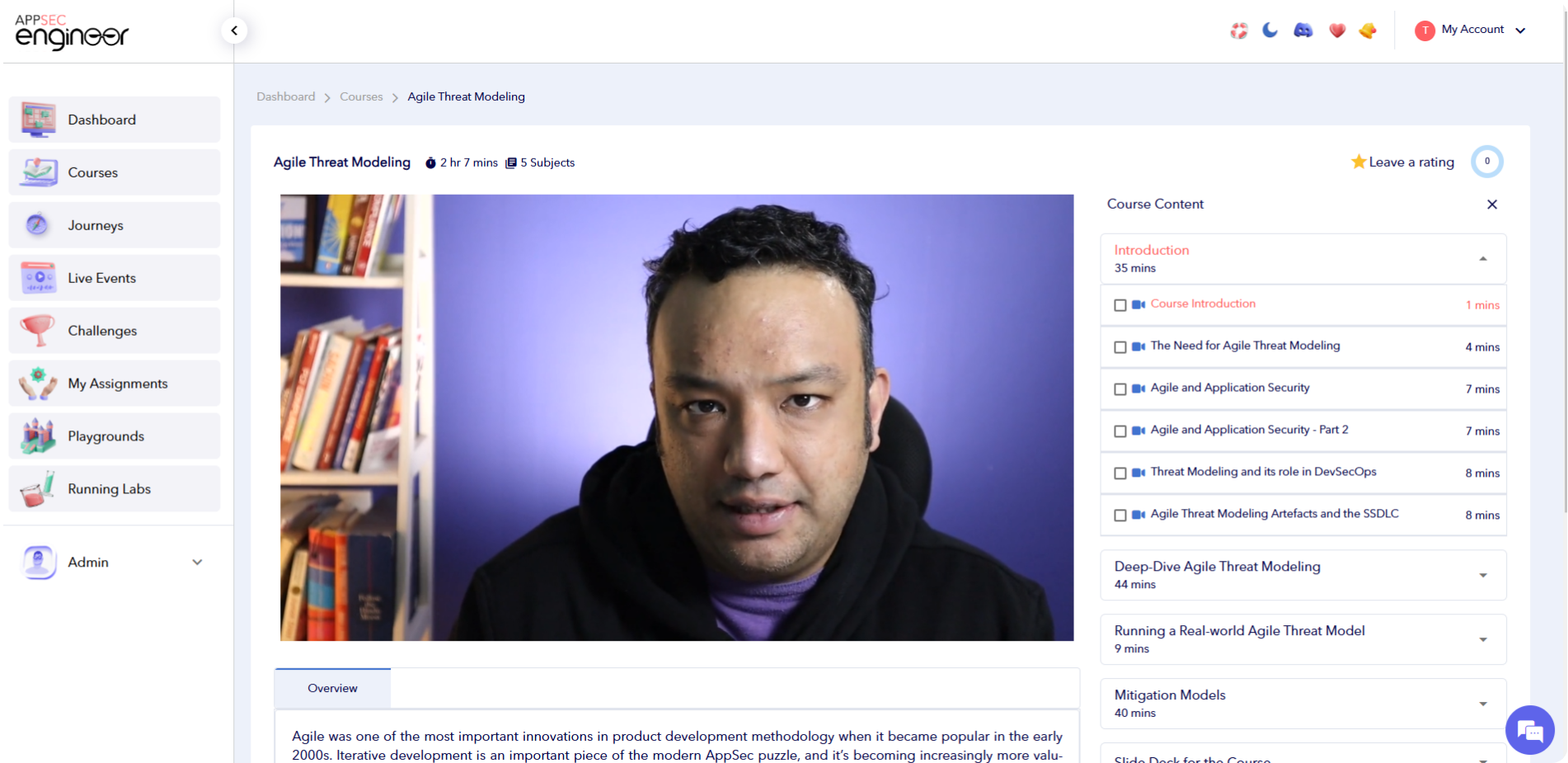 This screenshot shows the user opening their assigned course and clicking the 'Start Course' button on the course details page to begin their learning journey in the AppSecEngineer platform.
Start the Course:
- On the course details page, look for the "Start Course" button or link.
- Click on "Start Course" to begin your learning journey.
Also read this guide taking a tournament that was assigned to me to start your tournament assignment
Additional Tips:
- Ensure that you have a stable internet connection for smooth navigation and access.
- If you encounter any issues, reach out to the support team or refer to the FAQ section in the platform