---
title: SCIM Integration Guide
description: Step-by-step SCIM setup with Microsoft Entra for AppSecEngineer, enabling automatic user and group provisioning with secure connection testing.
---
[Skip to content](https://help.appsecengineer.com/scim-integration-guide#main-content)
English
Show submenu for translations
[](https://www.appsecengineer.com/)
- [Home](https://www.appsecengineer.com/)
- [Resources](https://www.appsecengineer.com/enterprises/blogs)
- [Course Library](https://www.appsecengineer.com/enterprises/courses)
Open main navigation
Close main navigation
- [Home](https://www.appsecengineer.com/)
- [Resources](https://www.appsecengineer.com/enterprises/blogs)
- [Course Library](https://www.appsecengineer.com/enterprises/courses)
- English
Show submenu for translations
How can we help you?
- There are no suggestions because the search field is empty.
1. [AppSecEngineer Knowledge Base](https://help.appsecengineer.com/?hsLang=en)
2. [Integrations](https://help.appsecengineer.com/integrations?hsLang=en)
# SCIM Integration Guide
## Configure SCIM integration via Microsoft Entra by creating an app, entering SCIM URL and secret from AppSecEngineer, testing connectivity, and enabling automatic provisioning.
1. Login into Azure Portal, Find and go to Microsoft Entra ID service
2. Click on Enterprise Application → New Application → Create Your Own application
3. Name the application something recognizable such as AppSecEngineer-SCIM, select the Non-gallery option and click on create
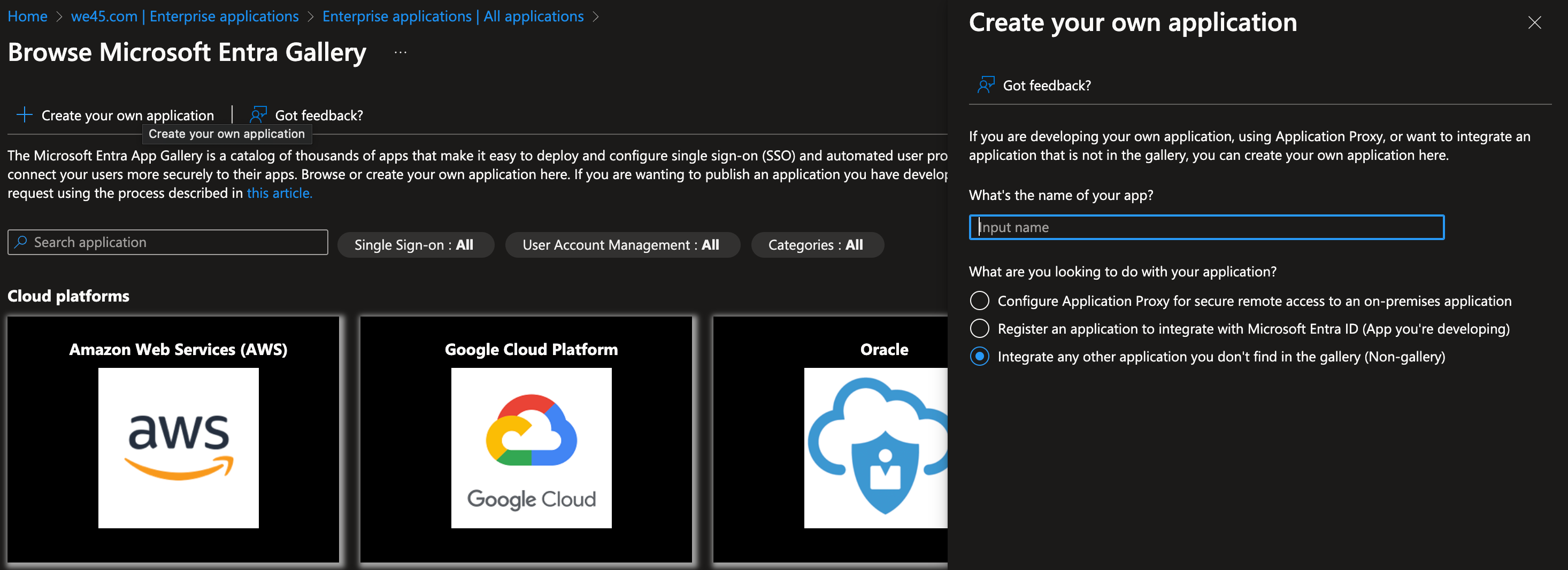 Microsoft Entra Gallery displays a search bar, app creation options, and listed cloud platforms like AWS, Google Cloud, and Oracle. The right panel allows users to name and configure a new application.
4. Once Application has been created, you'll find the following view, from the left navigation menu, select provisioning
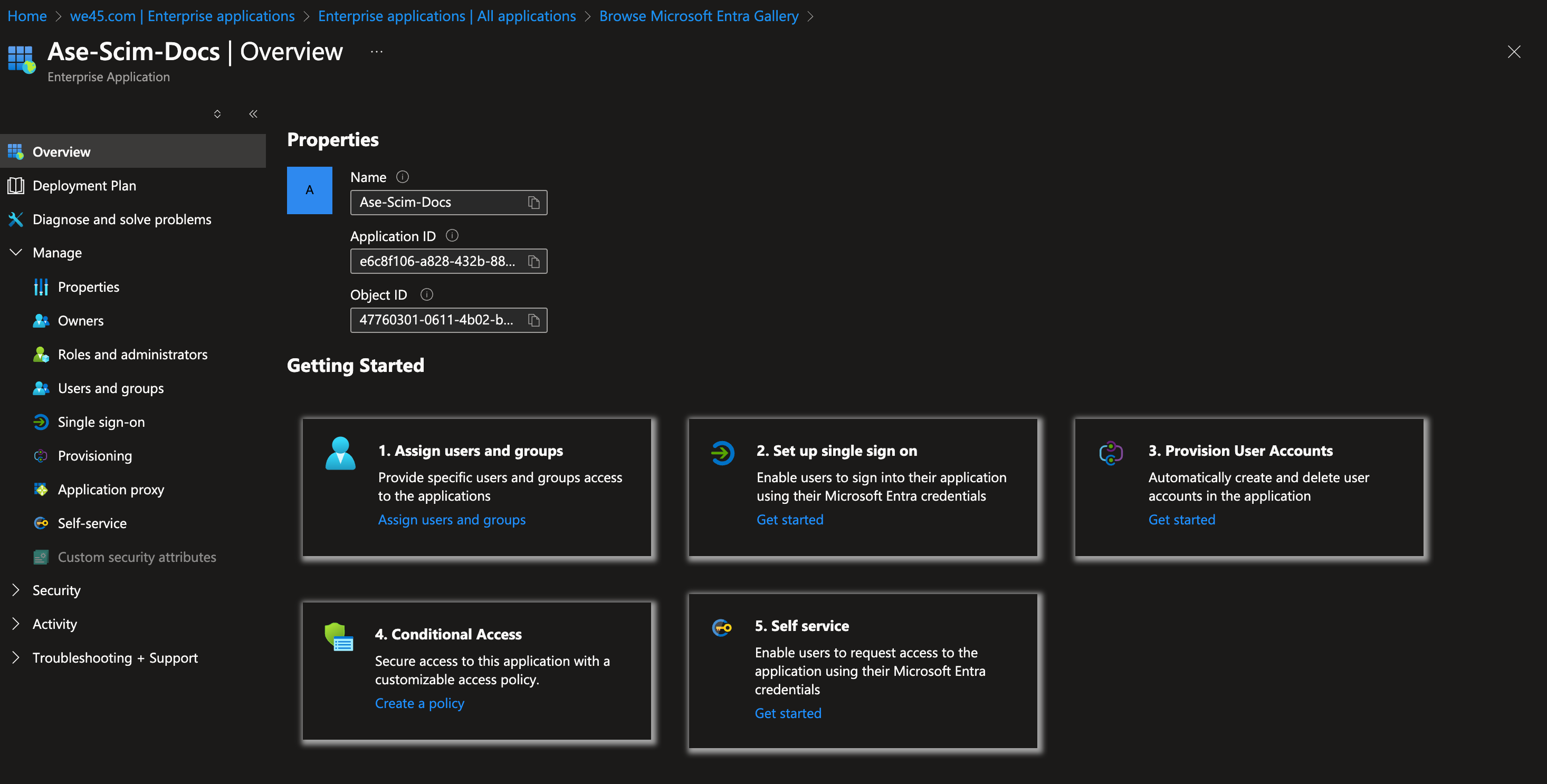 Displays app name, Application ID, Object ID, and setup options: assign users, configure single sign-on, provision accounts, conditional access, and self-service. Navigation menu includes Properties, Security, and Activity.
5. In a separate tab, login to the [AppSecEngineer portal](http://learning.appsecengineer.com), select "Admin login".
Navigate to the sidebar menu, open the admin dropdown. Click on "Integrations".
In the integrations section, note the SCIM integration URL and generate a SCIM secret.
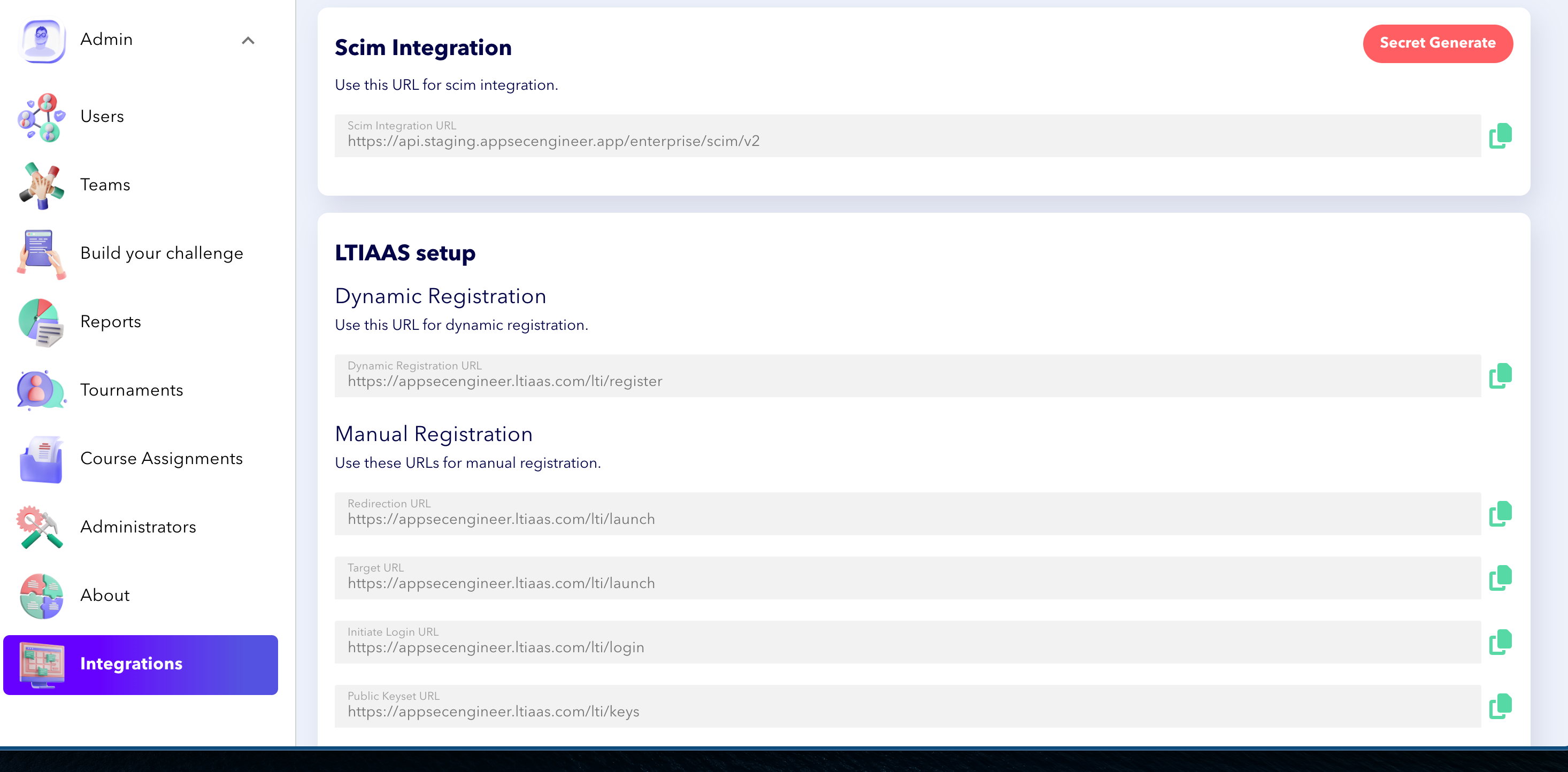 Interface showing SCIM Integration URL and LTIAAS setup sections for dynamic and manual registration. Left menu includes Admin, Users, Teams, Reports, and Integrations.
6. Go back to the Azure Portal tab, Click on provisioning and you should be able to see the following view.
Click on "Connect your application"
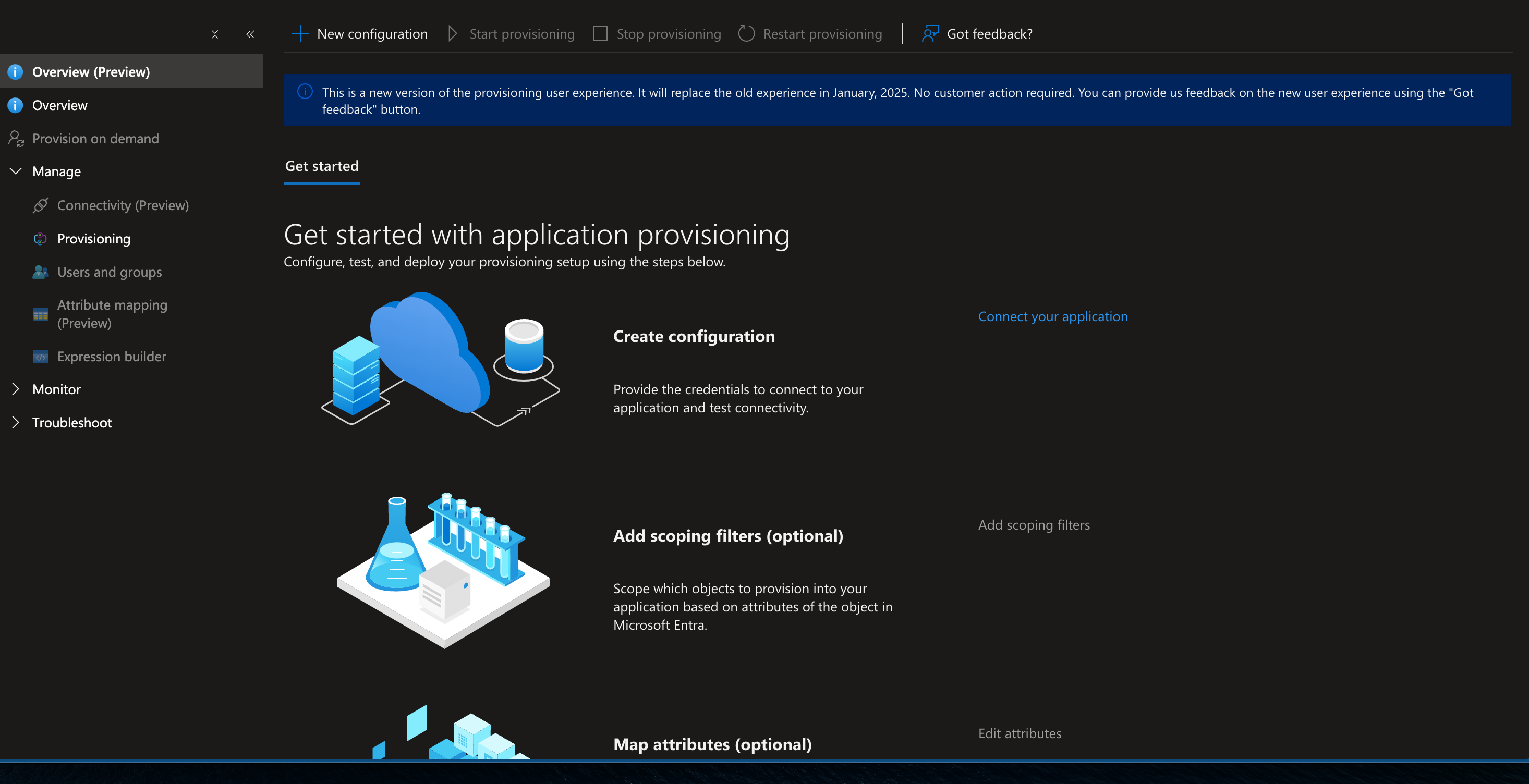 Interface for application provisioning setup, outlining steps like configuration creation, optional scoping filters, and attribute mapping. Features a sidebar menu with options such as Overview, Provisioning, and Monitor, alongside a notice about the new user experience launching in January 2025.
7. I n the "New Provisioning Configuration" page:
Enter the noted SCIM url into the Tenant url field.
Enter the SCIM secret into the secret token field.
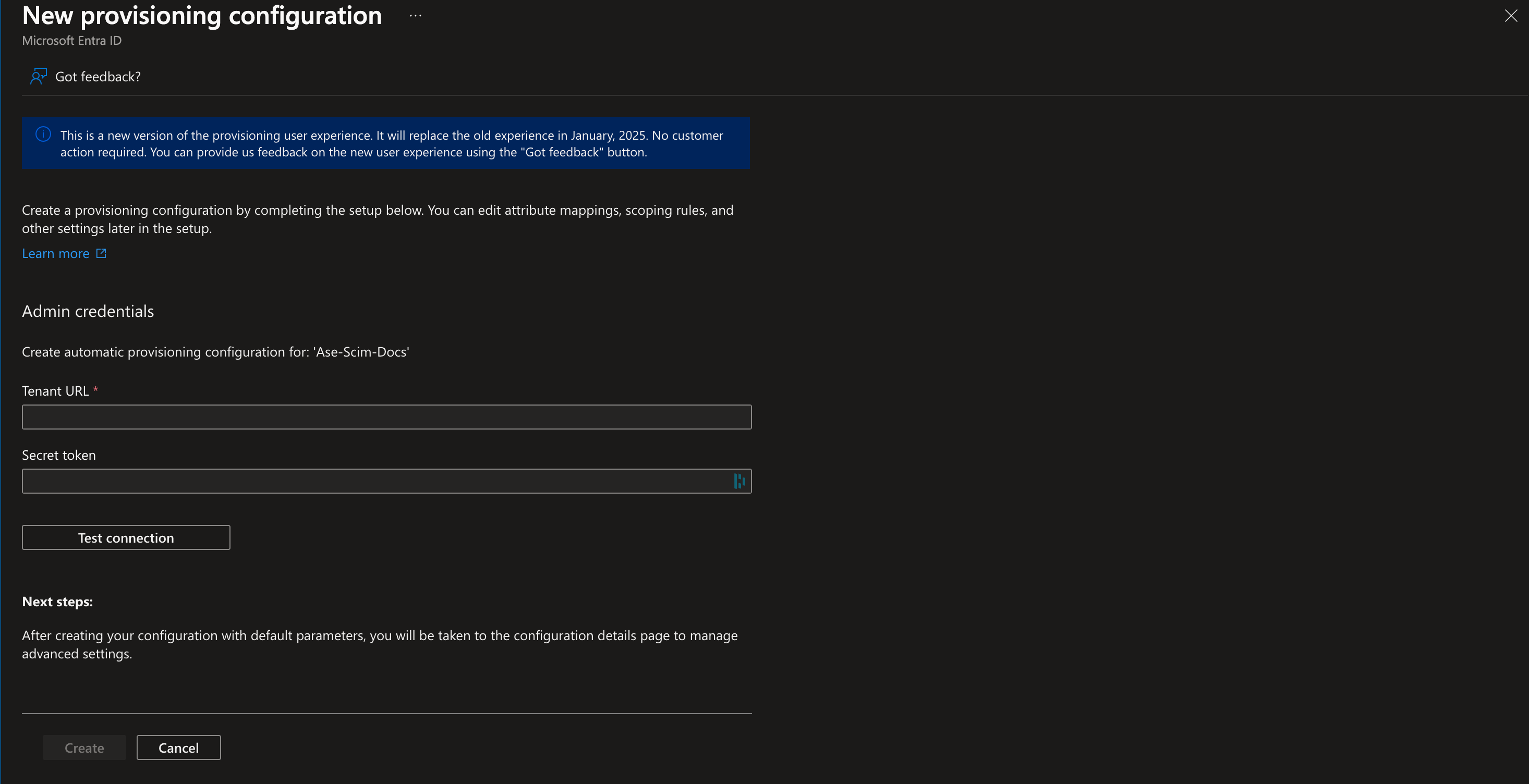 The image displays the setup interface for a new provisioning configuration in Microsoft Entra ID. It includes a message about an upcoming change in user experience, fields for entering admin credentials (Tenant URL and Secret Token), and options for creating or canceling the configuration.
8. Click on " `Test Connection":` you should receive a notification that connection is successful.
Click on " `Create"` to save the configuration.
9. After saving the configuration, click on " `Start Provisioning"`
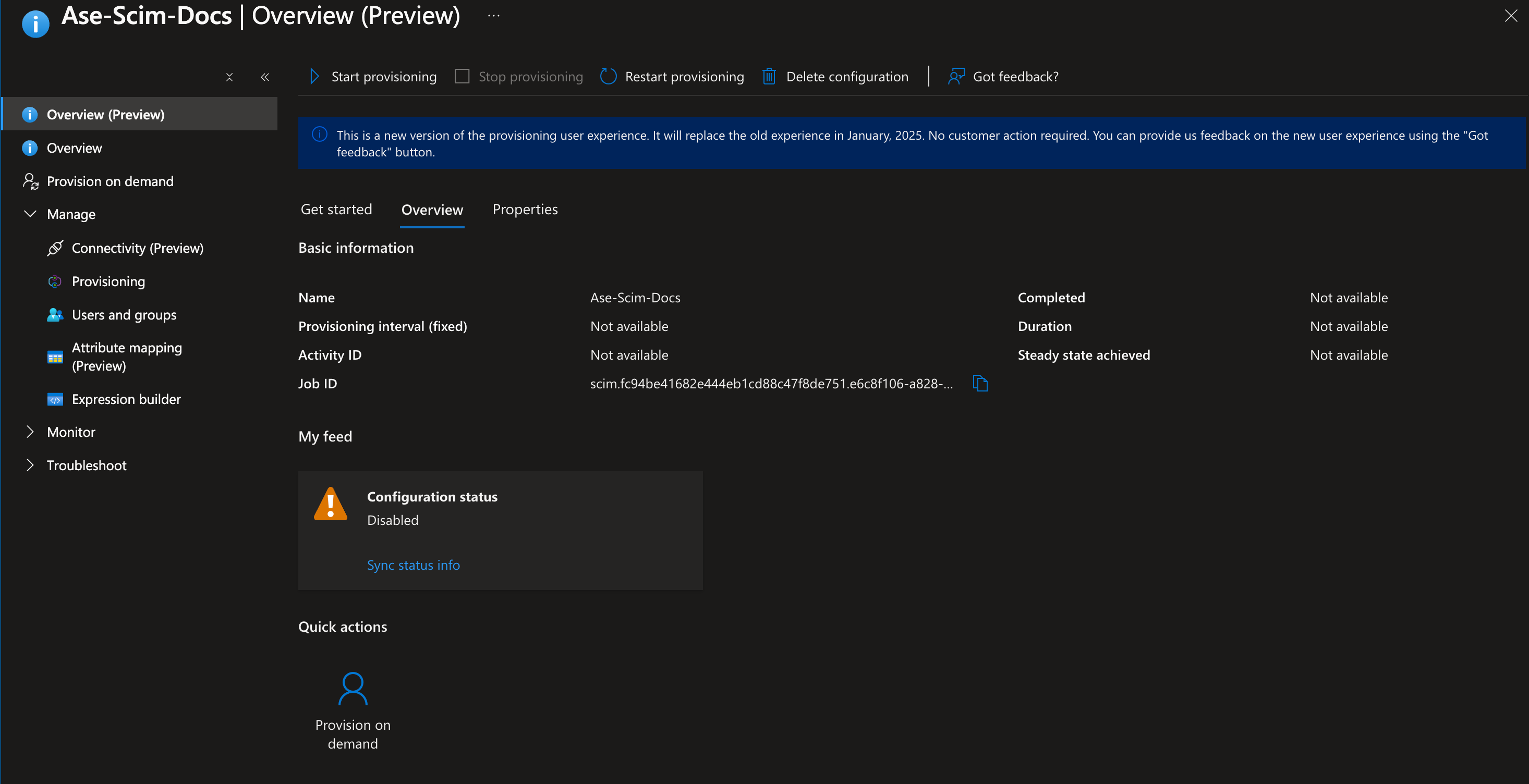 Interface displaying the status and settings for "Ase-Scim-Docs" provisioning configuration
10. Click on " `Provisioning"` from the left menu
Select the provisioning mode: "Automatic".
Turn **on** the `Provisioning Status` and press save.
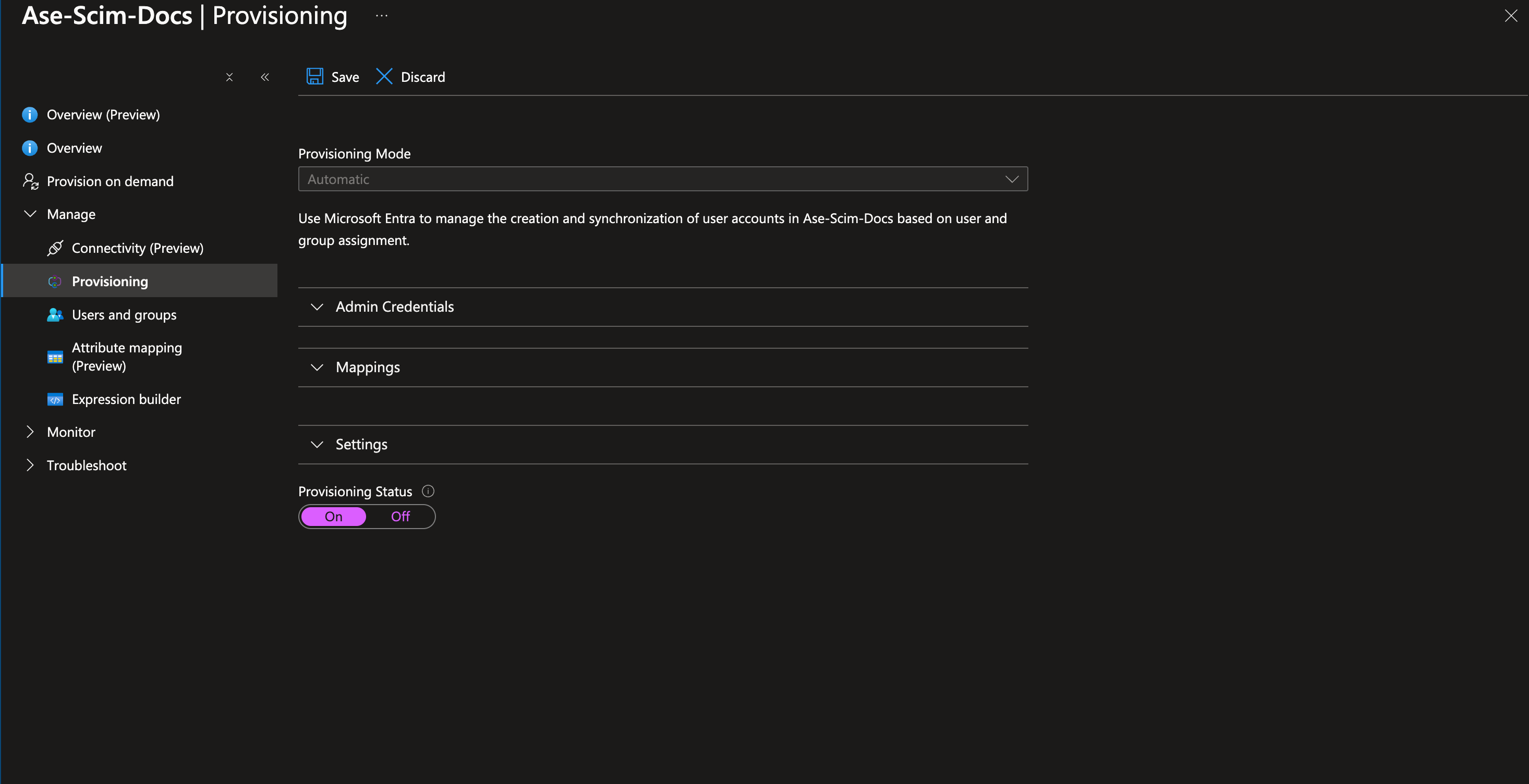 Interface for configuring provisioning settings in "Ase-Scim-Docs," including provisioning mode and admin credentials options.
The SCIM setup is complete!
Refer to Okta’s Expression Language documentation for more advanced mappings: [Okta Expression Language Guide](https://developer.okta.com/docs/reference/okta-expression-language/)
Combine SCIM with SSO for seamless user authentication, as shown in our guide on Integrating SSO (Single Sign-On)
All the users and groups assigned to this application will sync with your AppSecEngineer dashboard.
- [Getting started](https://help.appsecengineer.com/getting-started?hsLang=en#main-content)
- [Welcome to AppSecEngineer](https://help.appsecengineer.com/getting-started?hsLang=en#welcome-to-appsecengineer)
- [ILT (Instructor Led Training)](https://help.appsecengineer.com/getting-started?hsLang=en#ilt-instructor-led-training)
- [Onboarding Guide](https://help.appsecengineer.com/getting-started?hsLang=en#onboarding-guide)
- [Platform Navigation](https://help.appsecengineer.com/getting-started?hsLang=en#platform-navigation)
- [Quick Start Guide](https://help.appsecengineer.com/getting-started?hsLang=en#quick-start-guide)
- [Integrations](https://help.appsecengineer.com/integrations?hsLang=en)
- [Sandbox](https://help.appsecengineer.com/sandbox?hsLang=en)
- [Achievement](https://help.appsecengineer.com/achievement?hsLang=en)
- [Roadmap](https://help.appsecengineer.com/roadmap?hsLang=en)
- [Interviews](https://help.appsecengineer.com/interviews?hsLang=en)
- [Course recommendations](https://help.appsecengineer.com/course-recommendations?hsLang=en)
- [AppSecFlag](https://help.appsecengineer.com/appsecflag?hsLang=en)
- [Team Manager](https://help.appsecengineer.com/team-manager?hsLang=en)
- [Creator Studio](https://help.appsecengineer.com/creator-studio?hsLang=en)
- [Onboarding Guide](https://help.appsecengineer.com/onboarding-guide?hsLang=en)
- [Certification Pricing](https://help.appsecengineer.com/certification-pricing?hsLang=en)
- [Tournaments](https://help.appsecengineer.com/tournaments?hsLang=en)
- [Bootcamps](https://help.appsecengineer.com/bootcamps?hsLang=en)
- [Hands On Labs](https://help.appsecengineer.com/hands-on-labs?hsLang=en)
- [Users & Teams](https://help.appsecengineer.com/users-teams?hsLang=en#main-content)
- [Users](https://help.appsecengineer.com/users-teams?hsLang=en#users)
- [Teams](https://help.appsecengineer.com/users-teams?hsLang=en#teams)
- [Challenges](https://help.appsecengineer.com/challenges?hsLang=en#main-content)
- [For individuals](https://help.appsecengineer.com/challenges?hsLang=en#for-individuals)
- [For Admins](https://help.appsecengineer.com/challenges?hsLang=en#for-admins)
- [Report](https://help.appsecengineer.com/report?hsLang=en#main-content)
- [User / Team Level Reports](https://help.appsecengineer.com/report?hsLang=en#user-team-level-reports)
- [Feature Level Reports](https://help.appsecengineer.com/report?hsLang=en#feature-level-reports)
- [Assignments](https://help.appsecengineer.com/assignments?hsLang=en#main-content)
- [For Individuals](https://help.appsecengineer.com/assignments?hsLang=en#for-individuals)
- [For Admins](https://help.appsecengineer.com/assignments?hsLang=en#for-admins)
- [Learning Journeys](https://help.appsecengineer.com/learning-journeys?hsLang=en)
- [Certifications](https://help.appsecengineer.com/certifications?hsLang=en)
- [Pricing](https://help.appsecengineer.com/pricing?hsLang=en#main-content)
- [Trial & Queries](https://help.appsecengineer.com/pricing?hsLang=en#trial-queries)
- [Subscription Cancellation](https://help.appsecengineer.com/subscription-cancellation?hsLang=en)
- [Home](https://www.appsecengineer.com/)
- [Resources](https://www.appsecengineer.com/enterprises/blogs)
- [Course Library](https://www.appsecengineer.com/enterprises/courses)
[](https://www.appsecengineer.com/)
[mailto:email@email.com](mailto:email@email.com)
Copyright © 2026,