---
title: Reports about Learning Journeys
description: This article shows step by step process for learning journey reports download in AppSecEngineer Learning Platform
---
[Skip to content](https://help.appsecengineer.com/reports-about-learning-journeys#main-content)
English
Show submenu for translations
[](https://www.appsecengineer.com/)
- [Home](https://www.appsecengineer.com/)
- [Resources](https://www.appsecengineer.com/enterprises/blogs)
- [Course Library](https://www.appsecengineer.com/enterprises/courses)
Open main navigation
Close main navigation
- [Home](https://www.appsecengineer.com/)
- [Resources](https://www.appsecengineer.com/enterprises/blogs)
- [Course Library](https://www.appsecengineer.com/enterprises/courses)
- English
Show submenu for translations
How can we help you?
- There are no suggestions because the search field is empty.
1. [AppSecEngineer Knowledge Base](https://help.appsecengineer.com/?hsLang=en)
2. [Report](https://help.appsecengineer.com/report?hsLang=en)
3. [Feature Level Reports](https://help.appsecengineer.com/report?hsLang=en#feature-level-reports)
# Reports about Learning Journeys
## Access detailed reports on learning journeys in AppSecEngineer to track course progress, skills gained, and user engagement, with easy export options.
#### **1. Overview of Journeys**
- Scroll down in the Journeys section to see a complete list of all learning journeys.
- **Export Option**: Download journey details as a CSV file by clicking the **CSV** button in the top-right corner.
#### **2. Courses in the Journey**
- Navigate to **Left Sidebar** > **Admin** > **Reports** > **Report Type** > Select **Journey**.
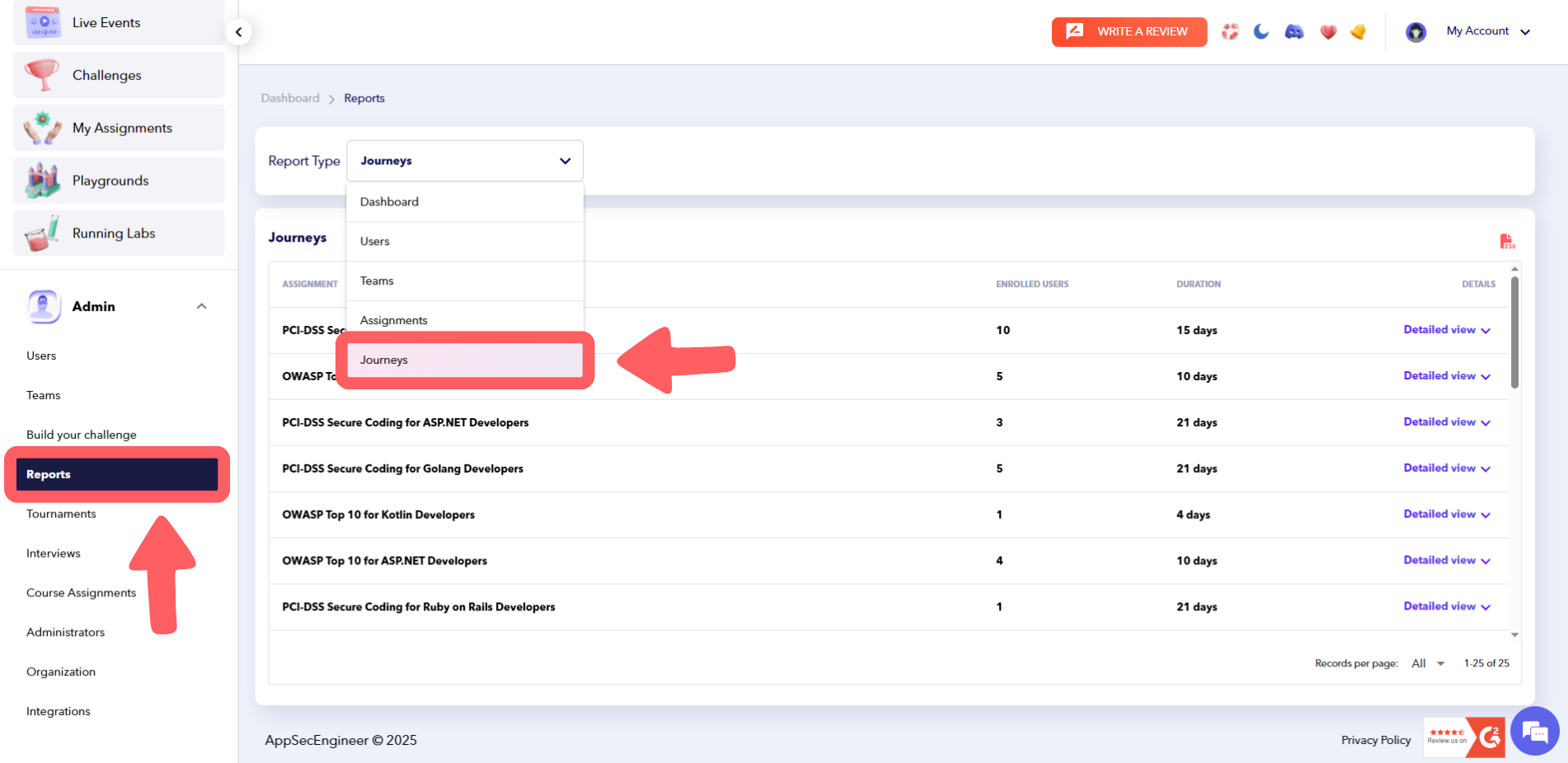
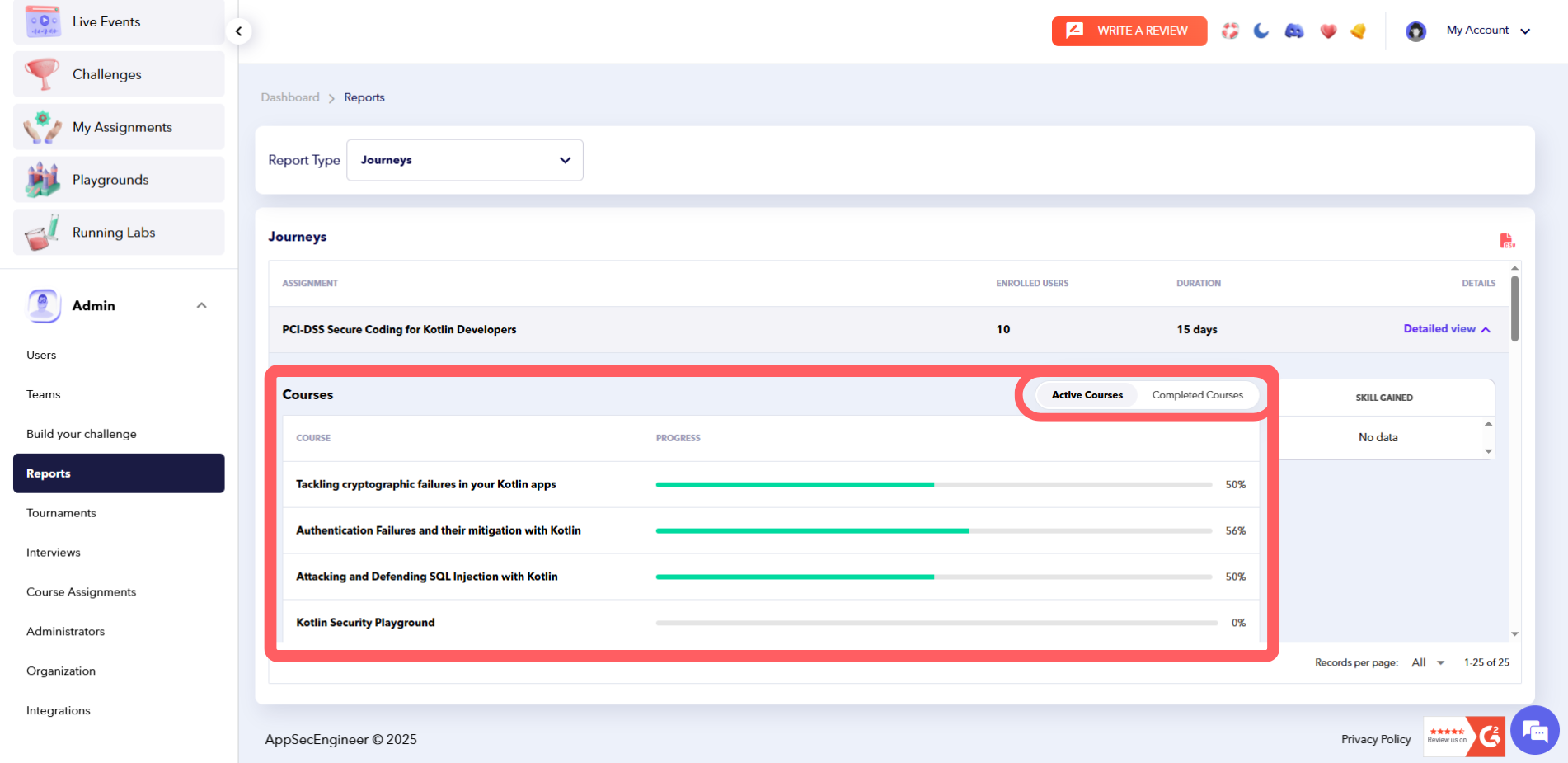
- Choose a journey and click on **Detailed View** to see all courses included in that journey.
- Progress: Displays the completion percentage for each course.
- Time Spent: Shows the time users have dedicated to each course.
Learn more about generating and interpreting reports in Reporting Dashboard Overview.
- **Toggle Options**:
- **Toggle Left**: View active courses.
- **Toggle Right**: View completed courses.
#### **3. Skills Gained from a Journey**
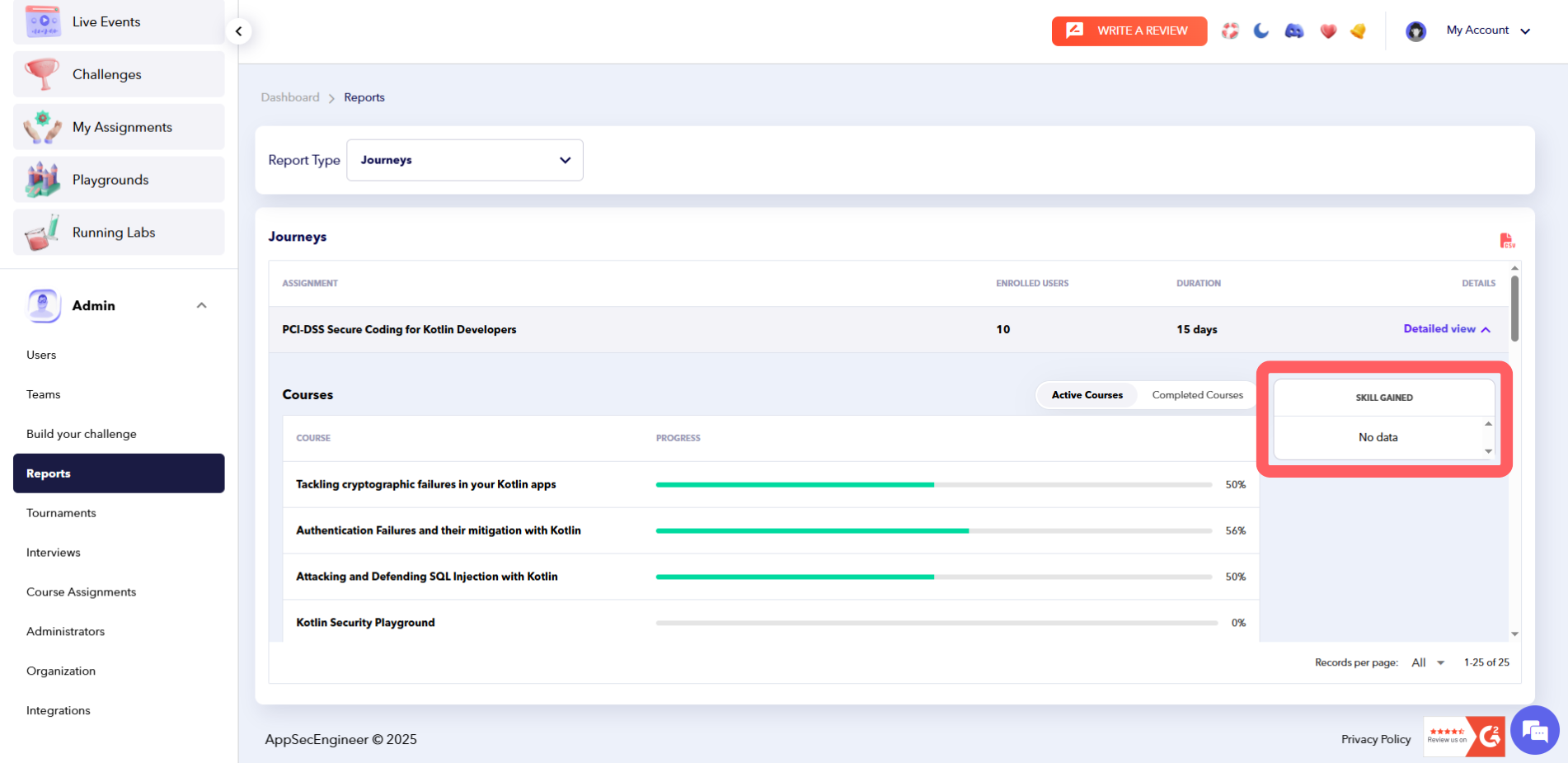
- Navigate to **Left Sidebar** > **Admin** > **Reports** > **Report Type** > Select **Journey**.
- Click on **Detailed View** and go to the **Skill Gained** section to see the skills developed through the learning journey.
#### **4. Users Assigned to the Journey**
- Navigate to **Left Sidebar** > **Admin** > **Reports** > **Report Type** > Select **Journey**.
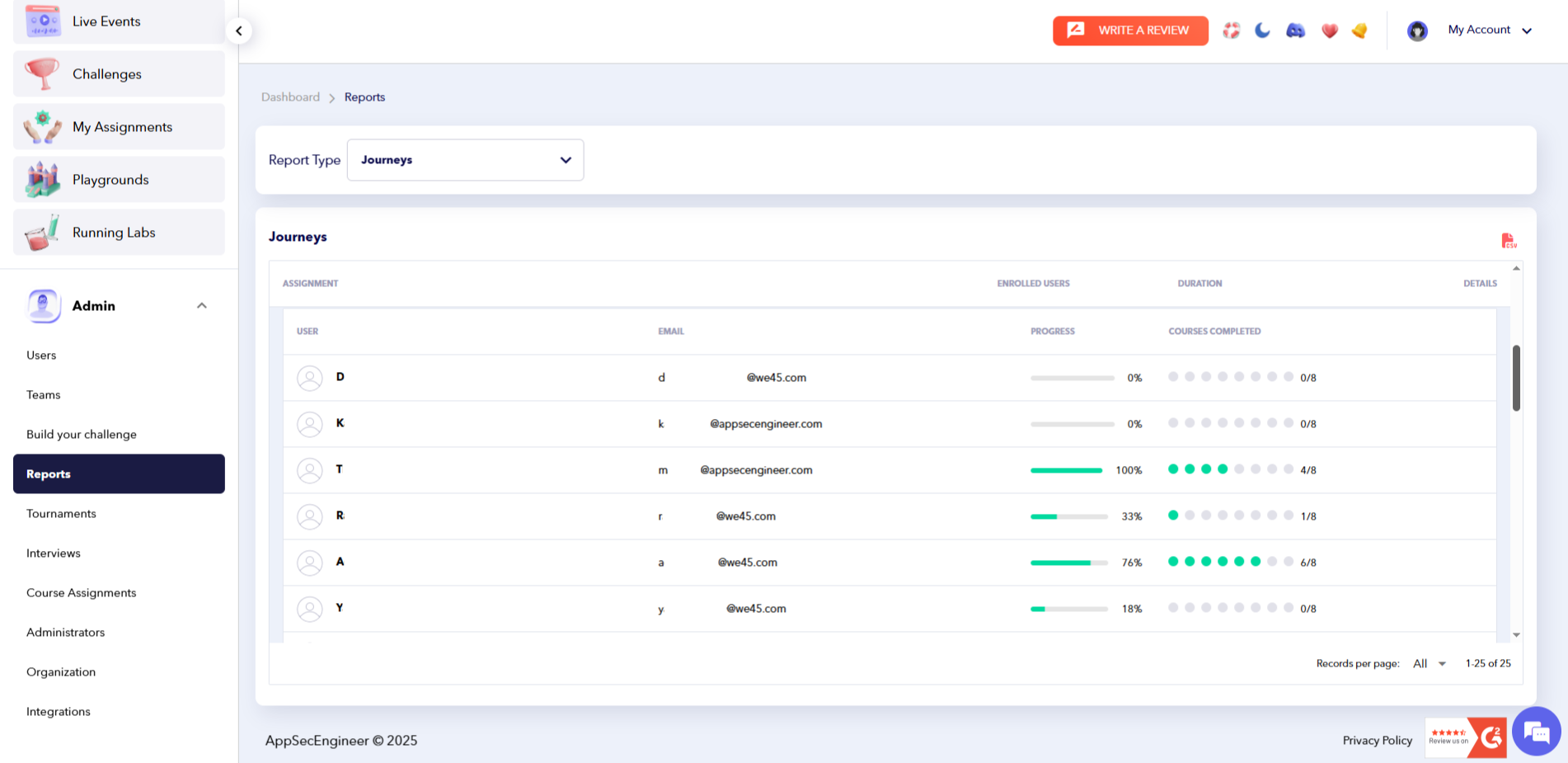
- Click on **Detailed View** and scroll down to the **Journey Users** section.
- View user details, including:
- Courses completed.
- Time spent on each course.
---
### **Exporting Journey Reports**
To download a journey’s complete detailed report:
1. Navigate to **Left Sidebar** > **Admin** > **Reports**.
2. Select **Report Type** and choose **Journeys**.
3. Choose the specific journey.
4. Click on the **CSV** button in the top-right corner to download the full report.
---
### **Tips for Using Journey Reports**
- Monitor the **Skill Gained** section to evaluate the effectiveness of learning journeys in meeting training objectives.
- Use the **Journey Users** section to identify individuals who excel or may need additional support.
- Regularly export and analyze journey reports for performance reviews and team development planning.
To explore individual user performance, visit Reports at the User Level
- [Getting started](https://help.appsecengineer.com/getting-started?hsLang=en#main-content)
- [Welcome to AppSecEngineer](https://help.appsecengineer.com/getting-started?hsLang=en#welcome-to-appsecengineer)
- [ILT (Instructor Led Training)](https://help.appsecengineer.com/getting-started?hsLang=en#ilt-instructor-led-training)
- [Onboarding Guide](https://help.appsecengineer.com/getting-started?hsLang=en#onboarding-guide)
- [Platform Navigation](https://help.appsecengineer.com/getting-started?hsLang=en#platform-navigation)
- [Quick Start Guide](https://help.appsecengineer.com/getting-started?hsLang=en#quick-start-guide)
- [Integrations](https://help.appsecengineer.com/integrations?hsLang=en)
- [Sandbox](https://help.appsecengineer.com/sandbox?hsLang=en)
- [Achievement](https://help.appsecengineer.com/achievement?hsLang=en)
- [Roadmap](https://help.appsecengineer.com/roadmap?hsLang=en)
- [Interviews](https://help.appsecengineer.com/interviews?hsLang=en)
- [Course recommendations](https://help.appsecengineer.com/course-recommendations?hsLang=en)
- [AppSecFlag](https://help.appsecengineer.com/appsecflag?hsLang=en)
- [Team Manager](https://help.appsecengineer.com/team-manager?hsLang=en)
- [Creator Studio](https://help.appsecengineer.com/creator-studio?hsLang=en)
- [Onboarding Guide](https://help.appsecengineer.com/onboarding-guide?hsLang=en)
- [Certification Pricing](https://help.appsecengineer.com/certification-pricing?hsLang=en)
- [Tournaments](https://help.appsecengineer.com/tournaments?hsLang=en)
- [Bootcamps](https://help.appsecengineer.com/bootcamps?hsLang=en)
- [Hands On Labs](https://help.appsecengineer.com/hands-on-labs?hsLang=en)
- [Users & Teams](https://help.appsecengineer.com/users-teams?hsLang=en#main-content)
- [Users](https://help.appsecengineer.com/users-teams?hsLang=en#users)
- [Teams](https://help.appsecengineer.com/users-teams?hsLang=en#teams)
- [Challenges](https://help.appsecengineer.com/challenges?hsLang=en#main-content)
- [For individuals](https://help.appsecengineer.com/challenges?hsLang=en#for-individuals)
- [For Admins](https://help.appsecengineer.com/challenges?hsLang=en#for-admins)
- [Report](https://help.appsecengineer.com/report?hsLang=en#main-content)
- [User / Team Level Reports](https://help.appsecengineer.com/report?hsLang=en#user-team-level-reports)
- [Feature Level Reports](https://help.appsecengineer.com/report?hsLang=en#feature-level-reports)
- [Assignments](https://help.appsecengineer.com/assignments?hsLang=en#main-content)
- [For Individuals](https://help.appsecengineer.com/assignments?hsLang=en#for-individuals)
- [For Admins](https://help.appsecengineer.com/assignments?hsLang=en#for-admins)
- [Learning Journeys](https://help.appsecengineer.com/learning-journeys?hsLang=en)
- [Certifications](https://help.appsecengineer.com/certifications?hsLang=en)
- [Pricing](https://help.appsecengineer.com/pricing?hsLang=en#main-content)
- [Trial & Queries](https://help.appsecengineer.com/pricing?hsLang=en#trial-queries)
- [Subscription Cancellation](https://help.appsecengineer.com/subscription-cancellation?hsLang=en)
- [Home](https://www.appsecengineer.com/)
- [Resources](https://www.appsecengineer.com/enterprises/blogs)
- [Course Library](https://www.appsecengineer.com/enterprises/courses)
[](https://www.appsecengineer.com/)
[mailto:email@email.com](mailto:email@email.com)
Copyright © 2026,