---
title: Integrate LTIAAS
description: Discover how to integrate LTIAAS in AppSecEngineer learning platform. This comprehensive guide walks you through the integration process, ensuring seamless connection and enhanced learning technology capabilities.
---
[Skip to content](https://help.appsecengineer.com/integrate-ltiaas#main-content)
English
Show submenu for translations
[](https://www.appsecengineer.com/)
- [Home](https://www.appsecengineer.com/)
- [Resources](https://www.appsecengineer.com/enterprises/blogs)
- [Course Library](https://www.appsecengineer.com/enterprises/courses)
Open main navigation
Close main navigation
- [Home](https://www.appsecengineer.com/)
- [Resources](https://www.appsecengineer.com/enterprises/blogs)
- [Course Library](https://www.appsecengineer.com/enterprises/courses)
- English
Show submenu for translations
How can we help you?
- There are no suggestions because the search field is empty.
1. [AppSecEngineer Knowledge Base](https://help.appsecengineer.com/?hsLang=en)
2. [Integrations](https://help.appsecengineer.com/integrations?hsLang=en)
# Integrate LTIAAS
## Integrate AppSecEngineer with Moodle using LTI 1.3 dynamic registration by copying the AppSecEngineer URL, registering the tool in Moodle, activating it, and verifying in AppSecEngineer.
Prerequisites:
- An active enterprise plan with AppSecEngineer
- Access to moodle with same email address as registered admin on AppSecEngineer platform
**Note:** There is no data synchronization
- **LTI 1.3 Integration**: Allows enterprises to pull training content dynamically using the AppSecEngineer plugin.
- **SCORM Integration**: Enables enterprises to **download and roll out** courses within their LMS manually.
To integrate the AppSecEngineer platform with your Moodle installation using LTI 1.3 dynamic registration, follow these steps:
1. **Access the Dynamic Registration URL in AppSecEngineer**:
- Log in to the AppSecEngineer platform.
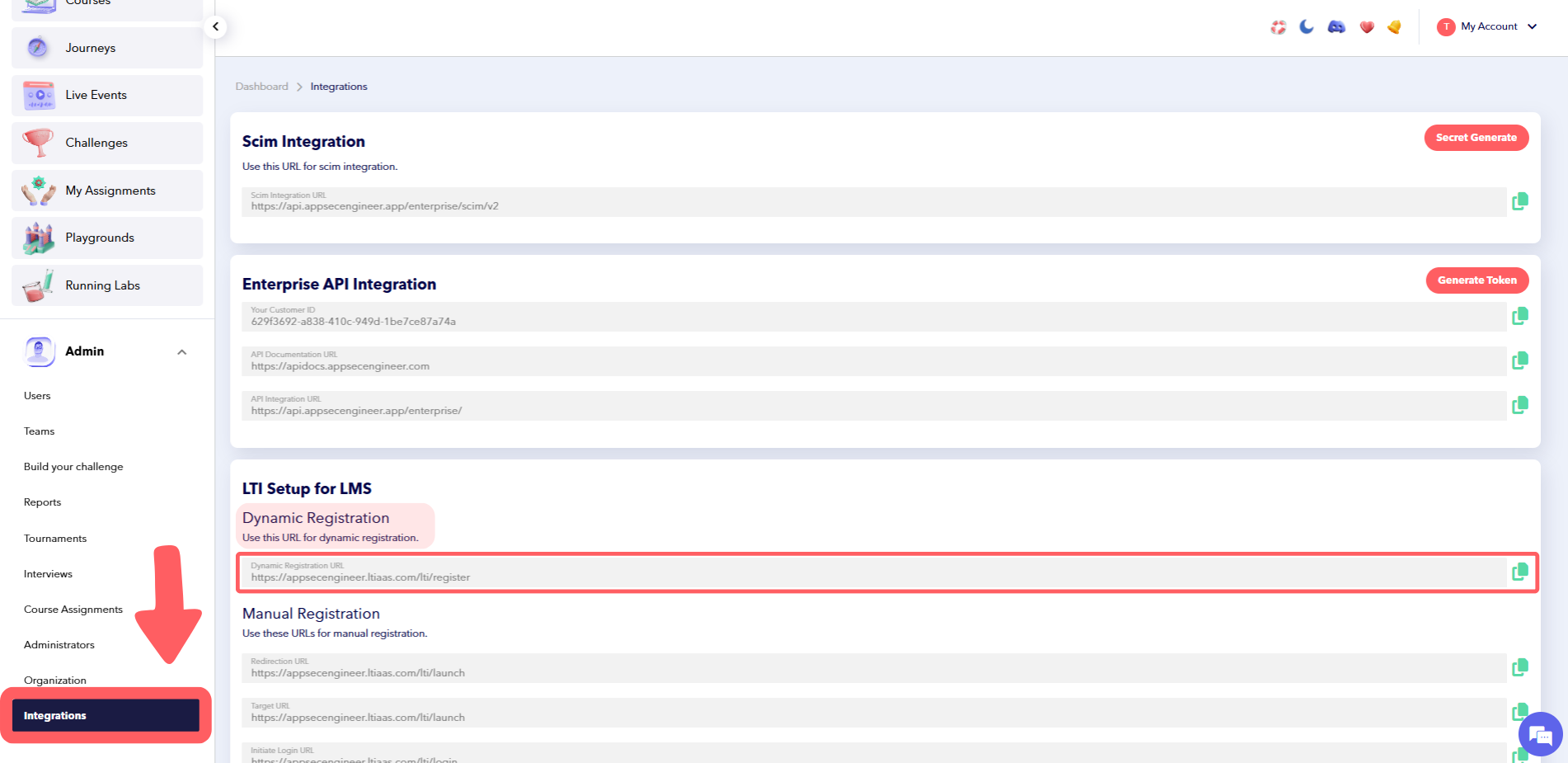
- Navigate to **Admin** → **Integrations**.
- In the **LTIAAS integration** section, locate and copy the **Dynamic Registration URL**.
Simplify user provisioning with our [SCIM Integration Guide](https://help.appsecengineer.com/scim-integration-guide?hsLang=en).
**Register the Tool in Moodle**:
- Log in to your Moodle site as an administrator.
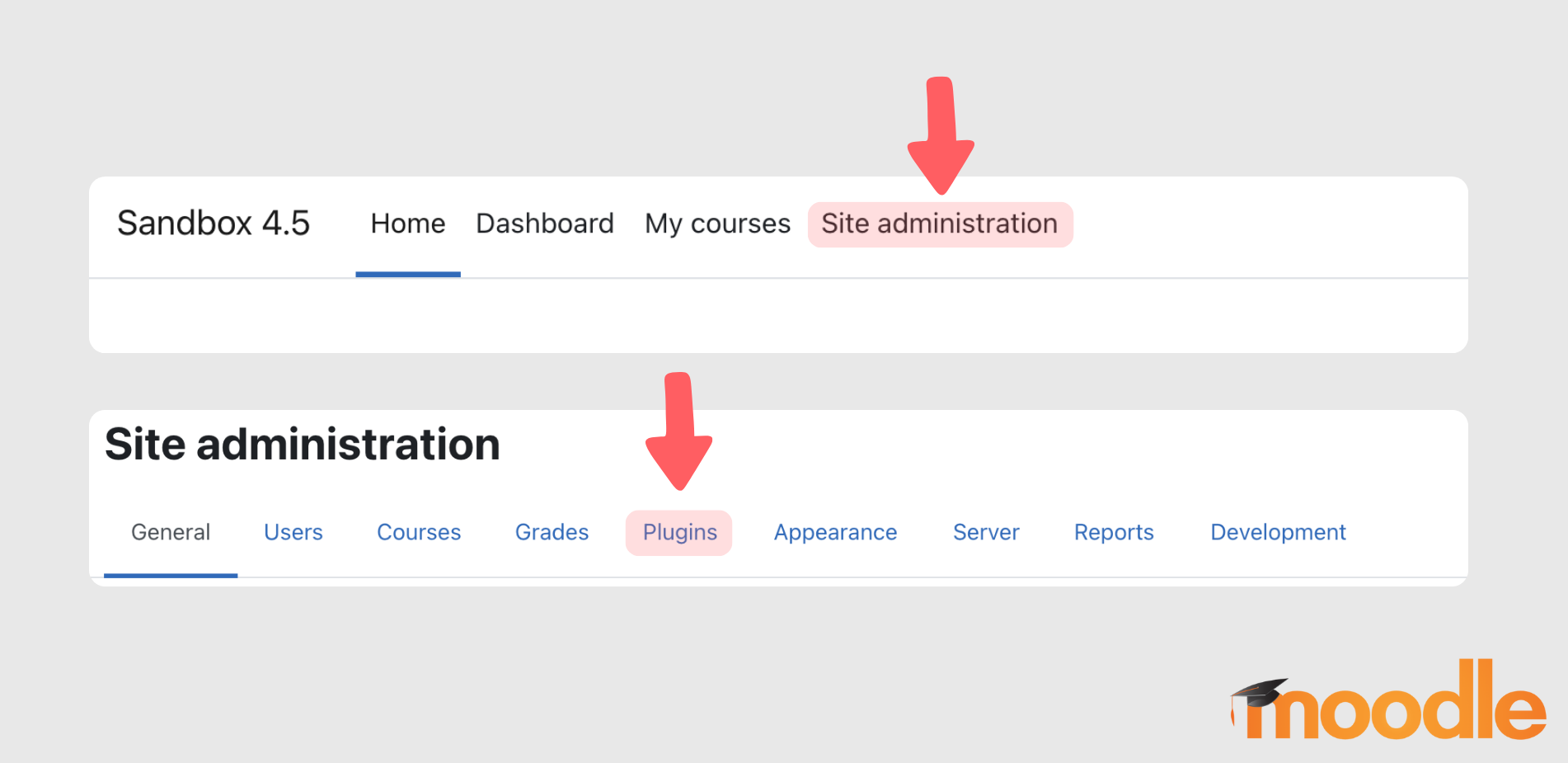
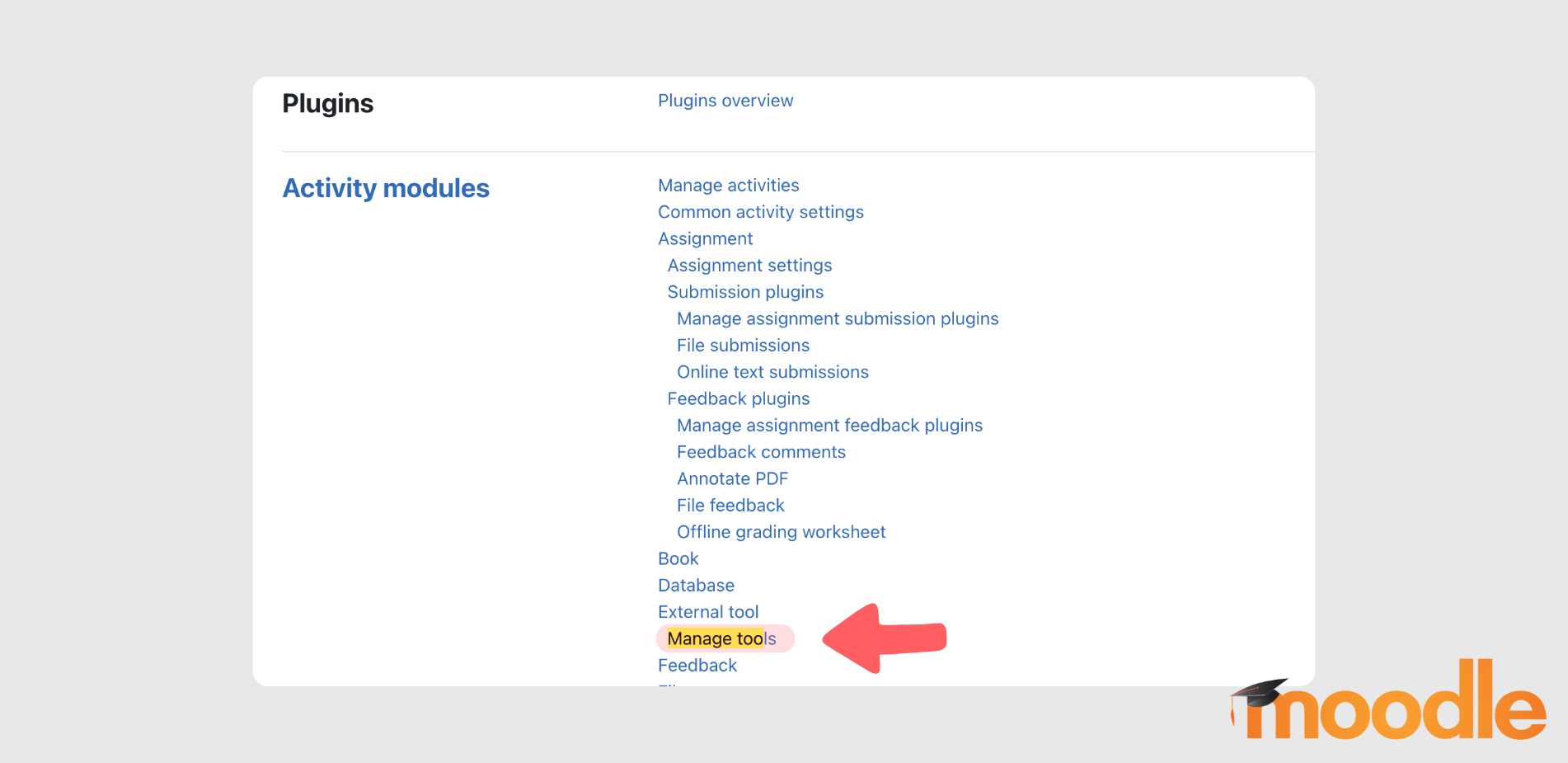
- Go to **Site administration** → **Plugins** → **Activity modules** → **External tool** → **Manage tools**.
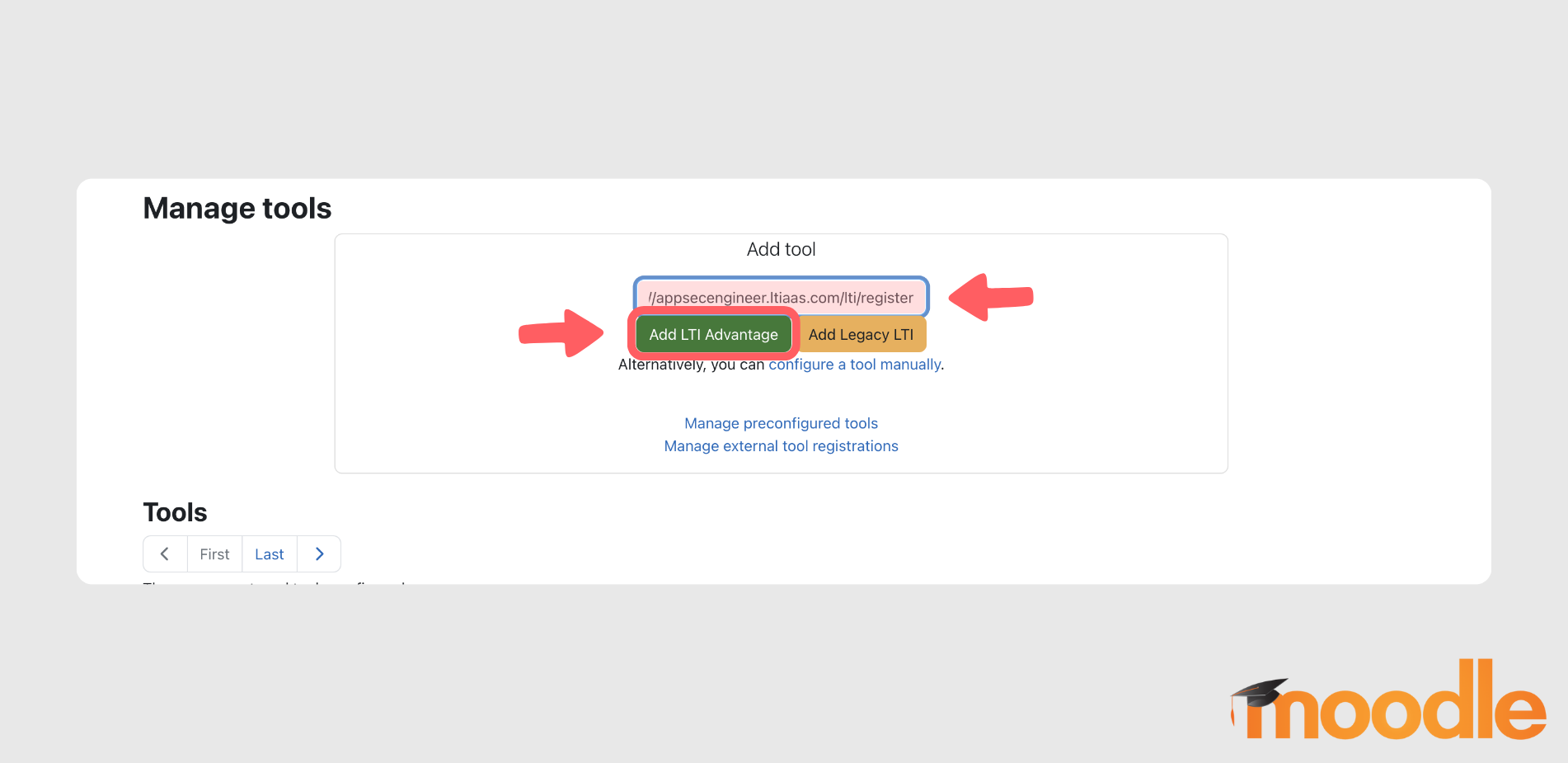
 In the **Tool URL** field, paste the Dynamic Registration URL you copied earlier.
- Click the **Add LTI Advantage** button.
- 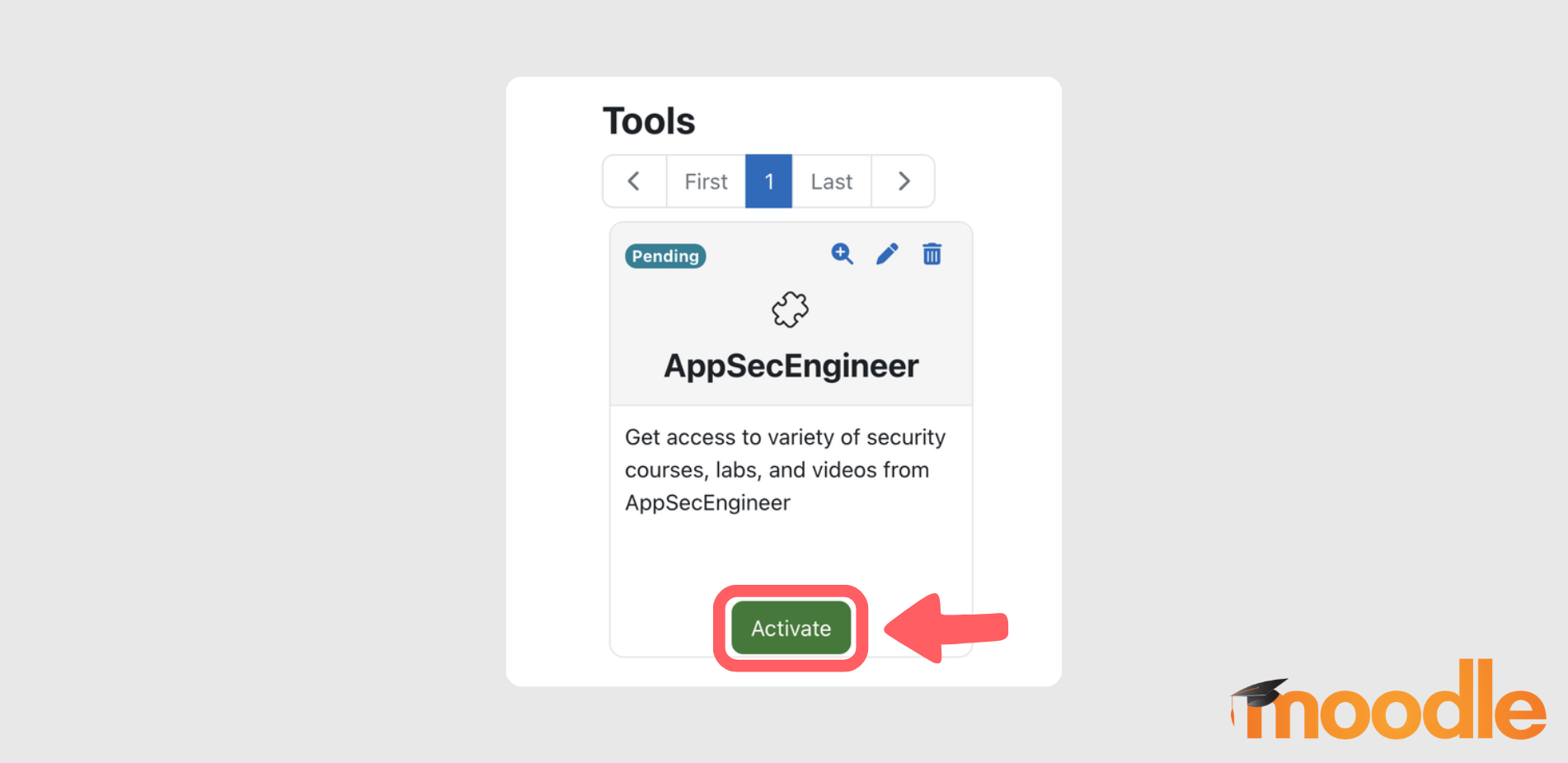 After the tool is registered, locate it in the list and click **Activate** to enable it.
Explore how to integrate with Moodle in our guide on [Moodle Integration](https://help.appsecengineer.com/moodle-integration?hsLang=en).
2. **Verify the Registration in AppSecEngineer**:
- Return to the AppSecEngineer platform.
- In the **LTIAAS Portal**, you should now see the registered tool.
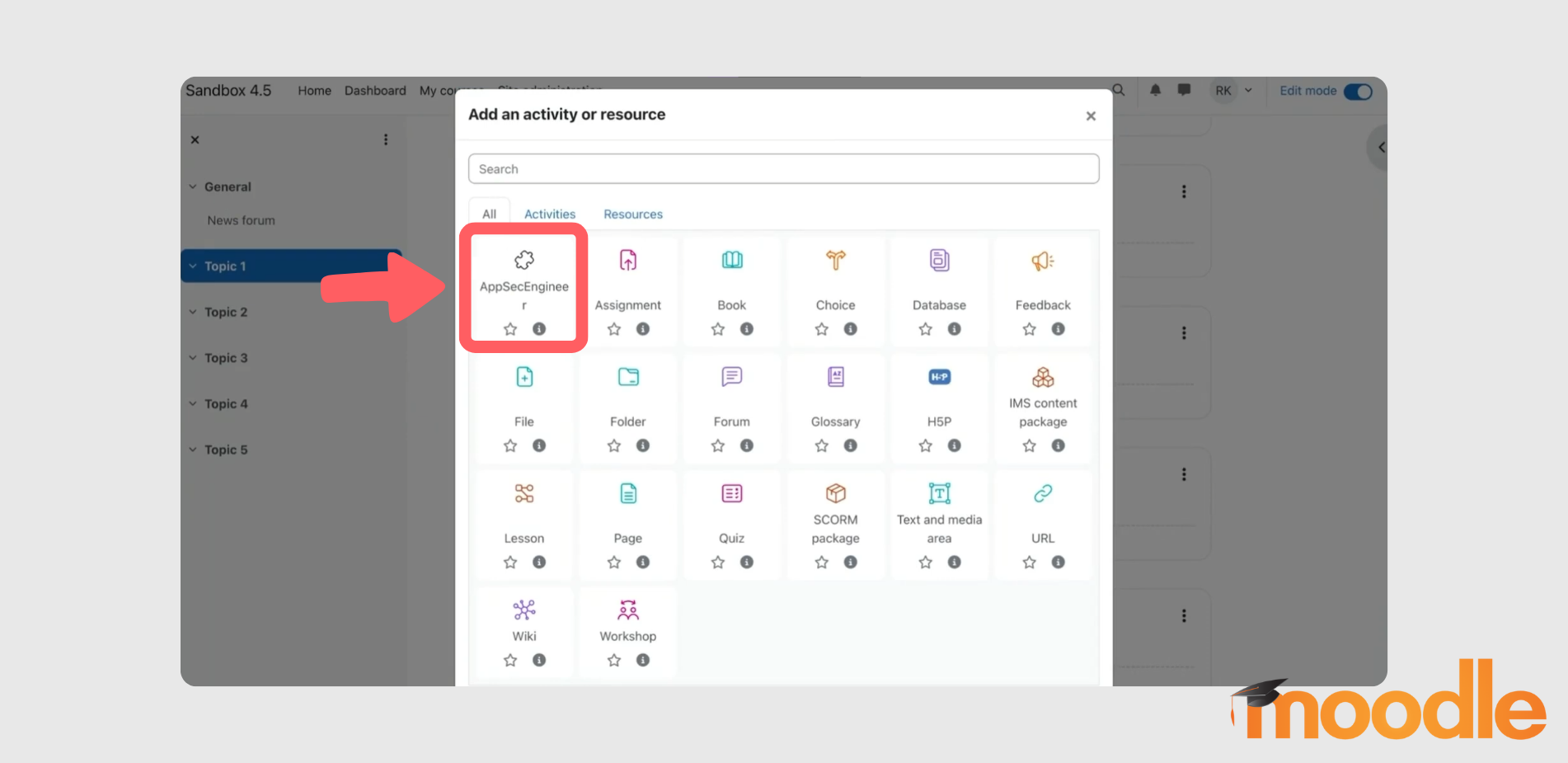
- Here, you can manage the registration, including activating or deactivating it as needed.
Once you have successfully registered the tool, kindly contact AppSecEngineer team so that we can enable the LTI access for you.
This process leverages the LTI 1.3 dynamic registration feature, which automates the exchange of configuration information between the tool (AppSecEngineer platform) and the learning management system (Moodle), simplifying the integration process.
[Codio Docs](https://docs.codio.com/instructors/admin/integration/lti1-3DynReg.html?utm_source=chatgpt.com)
For more detailed information on publishing an LTI tool in Moodle, you can refer to the official Moodle documentation.
[Moodle Docs](https://docs.moodle.org/en/Publish_as_LTI_tool?utm_source=chatgpt.com)
If you encounter any issues during this process, ensure that both the AppSecEngineer platform and your Moodle installation support LTI 1.3 dynamic registration and that all necessary permissions are correctly configured.
- [Getting started](https://help.appsecengineer.com/getting-started?hsLang=en#main-content)
- [Welcome to AppSecEngineer](https://help.appsecengineer.com/getting-started?hsLang=en#welcome-to-appsecengineer)
- [ILT (Instructor Led Training)](https://help.appsecengineer.com/getting-started?hsLang=en#ilt-instructor-led-training)
- [Onboarding Guide](https://help.appsecengineer.com/getting-started?hsLang=en#onboarding-guide)
- [Platform Navigation](https://help.appsecengineer.com/getting-started?hsLang=en#platform-navigation)
- [Quick Start Guide](https://help.appsecengineer.com/getting-started?hsLang=en#quick-start-guide)
- [Integrations](https://help.appsecengineer.com/integrations?hsLang=en)
- [Sandbox](https://help.appsecengineer.com/sandbox?hsLang=en)
- [Achievement](https://help.appsecengineer.com/achievement?hsLang=en)
- [Roadmap](https://help.appsecengineer.com/roadmap?hsLang=en)
- [Interviews](https://help.appsecengineer.com/interviews?hsLang=en)
- [Course recommendations](https://help.appsecengineer.com/course-recommendations?hsLang=en)
- [AppSecFlag](https://help.appsecengineer.com/appsecflag?hsLang=en)
- [Team Manager](https://help.appsecengineer.com/team-manager?hsLang=en)
- [Creator Studio](https://help.appsecengineer.com/creator-studio?hsLang=en)
- [Onboarding Guide](https://help.appsecengineer.com/onboarding-guide?hsLang=en)
- [Certification Pricing](https://help.appsecengineer.com/certification-pricing?hsLang=en)
- [Tournaments](https://help.appsecengineer.com/tournaments?hsLang=en)
- [Bootcamps](https://help.appsecengineer.com/bootcamps?hsLang=en)
- [Hands On Labs](https://help.appsecengineer.com/hands-on-labs?hsLang=en)
- [Users & Teams](https://help.appsecengineer.com/users-teams?hsLang=en#main-content)
- [Users](https://help.appsecengineer.com/users-teams?hsLang=en#users)
- [Teams](https://help.appsecengineer.com/users-teams?hsLang=en#teams)
- [Challenges](https://help.appsecengineer.com/challenges?hsLang=en#main-content)
- [For individuals](https://help.appsecengineer.com/challenges?hsLang=en#for-individuals)
- [For Admins](https://help.appsecengineer.com/challenges?hsLang=en#for-admins)
- [Report](https://help.appsecengineer.com/report?hsLang=en#main-content)
- [User / Team Level Reports](https://help.appsecengineer.com/report?hsLang=en#user-team-level-reports)
- [Feature Level Reports](https://help.appsecengineer.com/report?hsLang=en#feature-level-reports)
- [Assignments](https://help.appsecengineer.com/assignments?hsLang=en#main-content)
- [For Individuals](https://help.appsecengineer.com/assignments?hsLang=en#for-individuals)
- [For Admins](https://help.appsecengineer.com/assignments?hsLang=en#for-admins)
- [Learning Journeys](https://help.appsecengineer.com/learning-journeys?hsLang=en)
- [Certifications](https://help.appsecengineer.com/certifications?hsLang=en)
- [Pricing](https://help.appsecengineer.com/pricing?hsLang=en#main-content)
- [Trial & Queries](https://help.appsecengineer.com/pricing?hsLang=en#trial-queries)
- [Subscription Cancellation](https://help.appsecengineer.com/subscription-cancellation?hsLang=en)
- [Home](https://www.appsecengineer.com/)
- [Resources](https://www.appsecengineer.com/enterprises/blogs)
- [Course Library](https://www.appsecengineer.com/enterprises/courses)
[](https://www.appsecengineer.com/)
[mailto:email@email.com](mailto:email@email.com)
Copyright © 2026,