---
title: How to Create a New CTF on AppSecFlag ?
description: Learn how to create and manage Solo or Team Capture The Flag (CTF) events on AppSecFlag with easy setup, event configuration, scheduling, and participant management.
---
[Skip to content](https://help.appsecengineer.com/how-to-create-a-new-ctf-on-appsecflag-#main-content)
English
Show submenu for translations
[](https://www.appsecengineer.com/)
- [Home](https://www.appsecengineer.com/)
- [Resources](https://www.appsecengineer.com/enterprises/blogs)
- [Course Library](https://www.appsecengineer.com/enterprises/courses)
Open main navigation
Close main navigation
- [Home](https://www.appsecengineer.com/)
- [Resources](https://www.appsecengineer.com/enterprises/blogs)
- [Course Library](https://www.appsecengineer.com/enterprises/courses)
- English
Show submenu for translations
How can we help you?
- There are no suggestions because the search field is empty.
1. [AppSecEngineer Knowledge Base](https://help.appsecengineer.com/?hsLang=en)
2. [AppSecFlag](https://help.appsecengineer.com/appsecflag?hsLang=en)
# How to Create a New CTF on AppSecFlag ?
## Step-by-step guide for admins to create and manage Solo or Team CTF events on AppSecFlag, including configuring event details, formats, scheduling, and participant invitations
AppSecFlag makes it easy to host Capture the Flag (CTF) events whether for individual upskilling, internal team competitions, or community challenges. This guide walks you through each step to create a new CTF event on the platform.
### **Steps to Create a New CTF**
#### **Step 1: Navigate to the CTF Section**
1. Log into your AppSecFlag account.
2. Go to the **CTF** tab from the dashboard menu.
#### **Step 2: Click on ‘Create New CTF’**
- You'll be taken to a setup form where you can define the structure and rules for your CTF event.
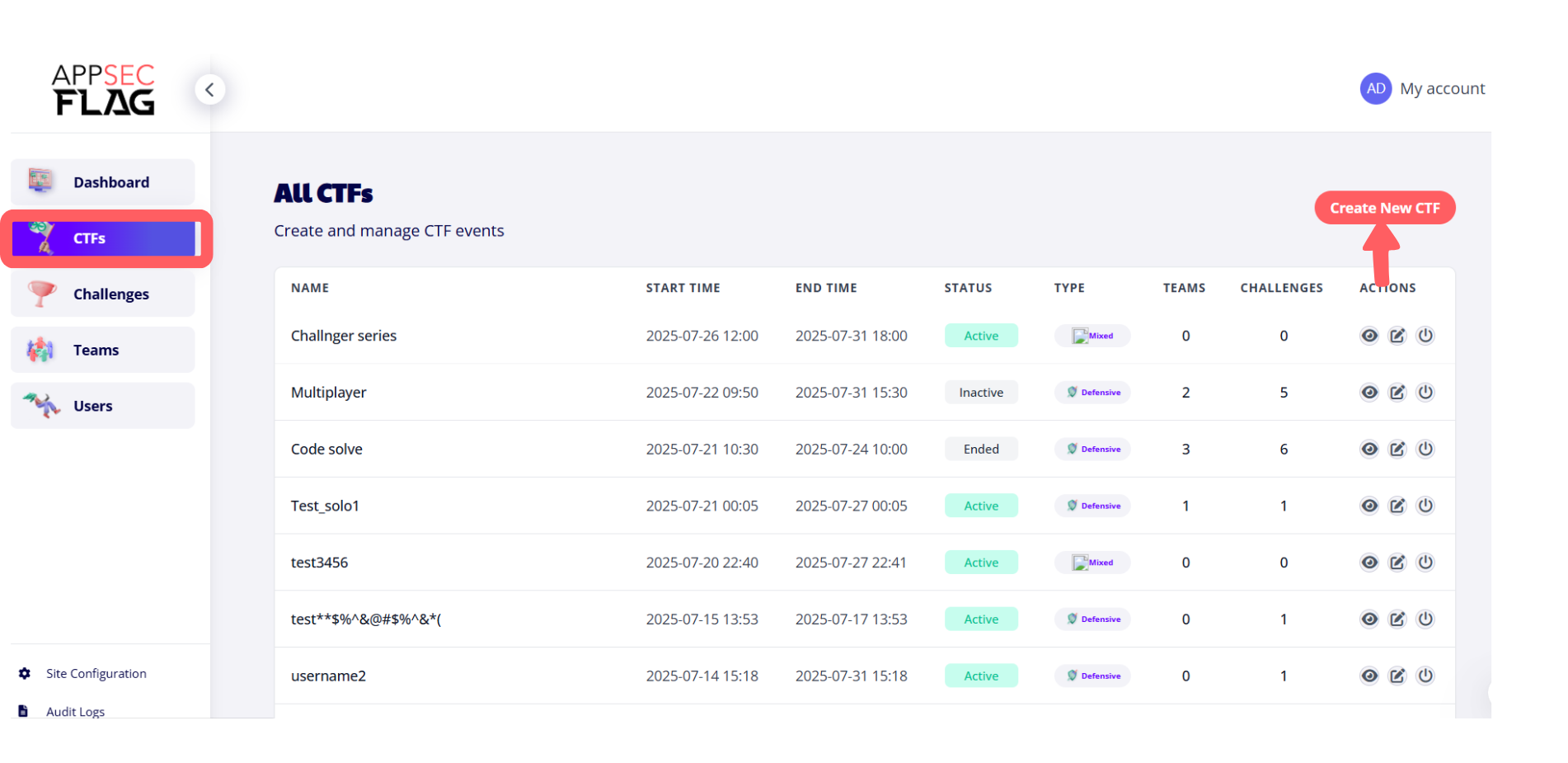 The CTFs page allows admins to manage Capture The Flag events, view event details, and create new CTFs using the "Create New CTF" button.
**Step 3: Choose CTF Format**
Under the **CTF Type** section, you can select how your participants will compete:
- **Solo CTF**
Participants compete individually. Best suited for independent skill-building or solo practice sessions.
- **Team CTF**
Participants can form teams to tackle challenges collaboratively. Ideal for hackathons, company-wide contests, or learning with peers
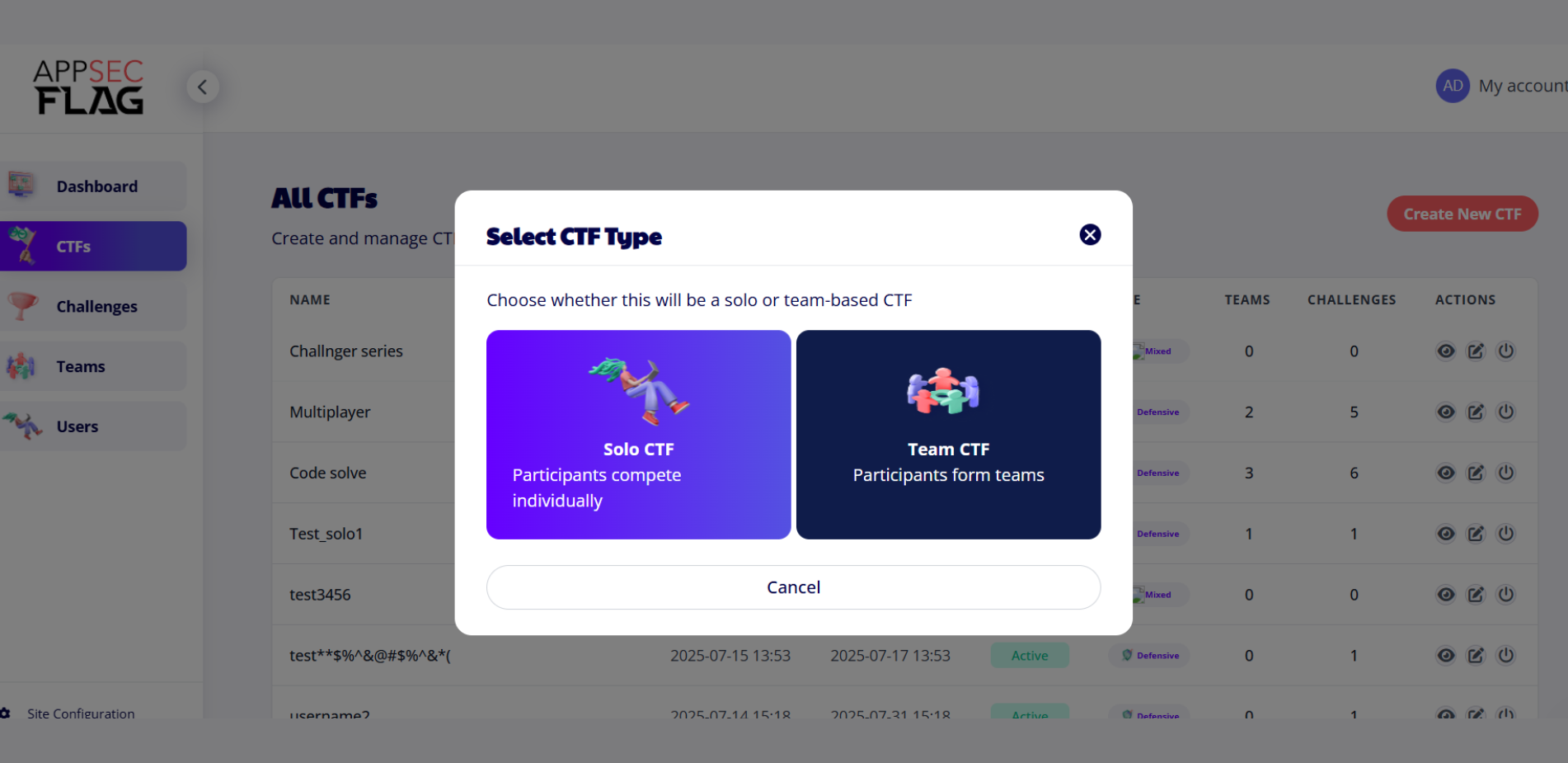 Admins can choose the CTF type Solo for individual participation or Team for group challenges when creating a new event.
#### **Step 4: Fill in CTF Details**
You’ll be prompted to enter details like:
- **CTF Name**
- **Start & End Date/Time**
- **CTF Type** (Defensive, Offensive, Mixed)
- **Challenge Count**
- **Enable/Disable Leaderboards**
- **Invite Participants**
**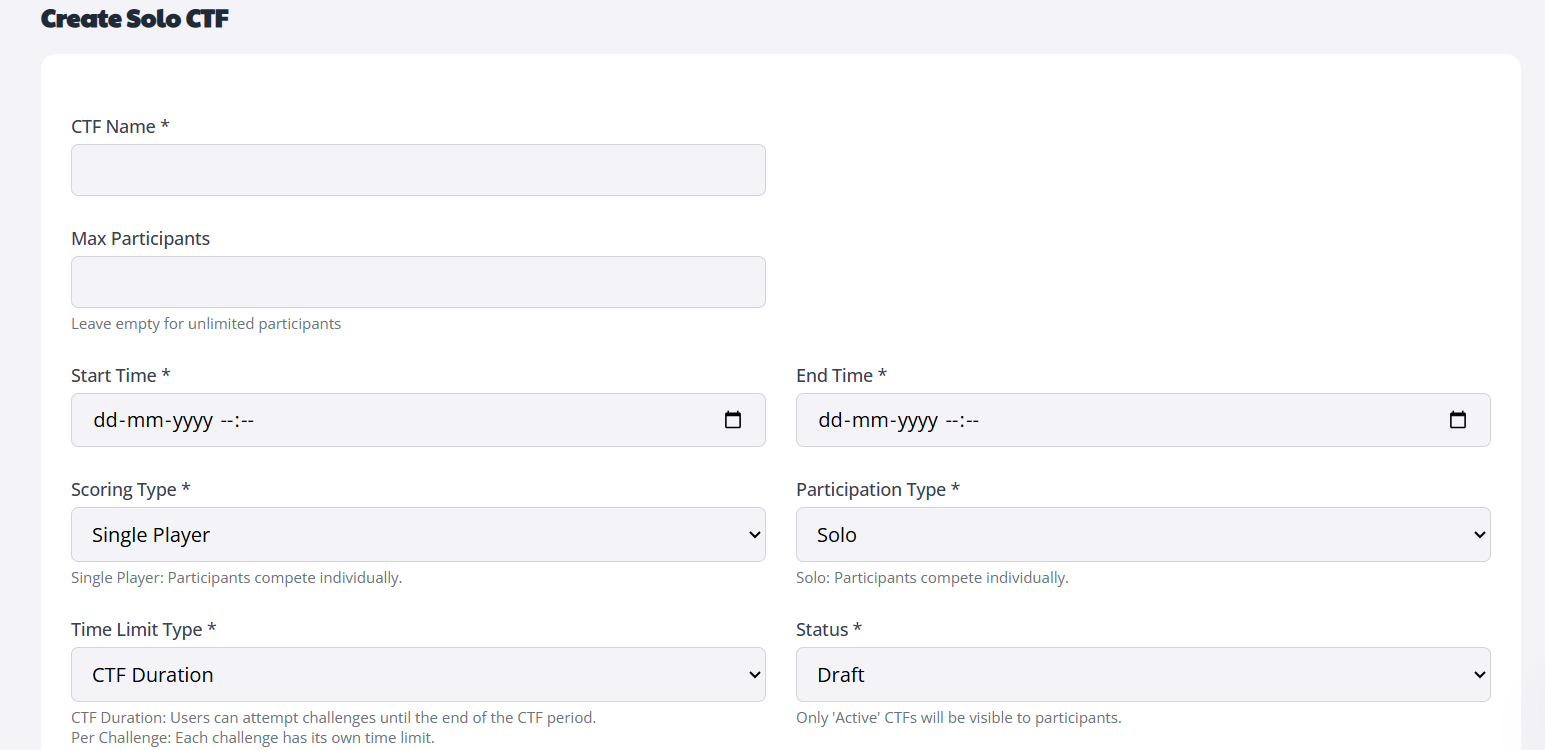A form interface to create a Solo CTF event, including inputs for name, time, participant limits, and scoring settings.**
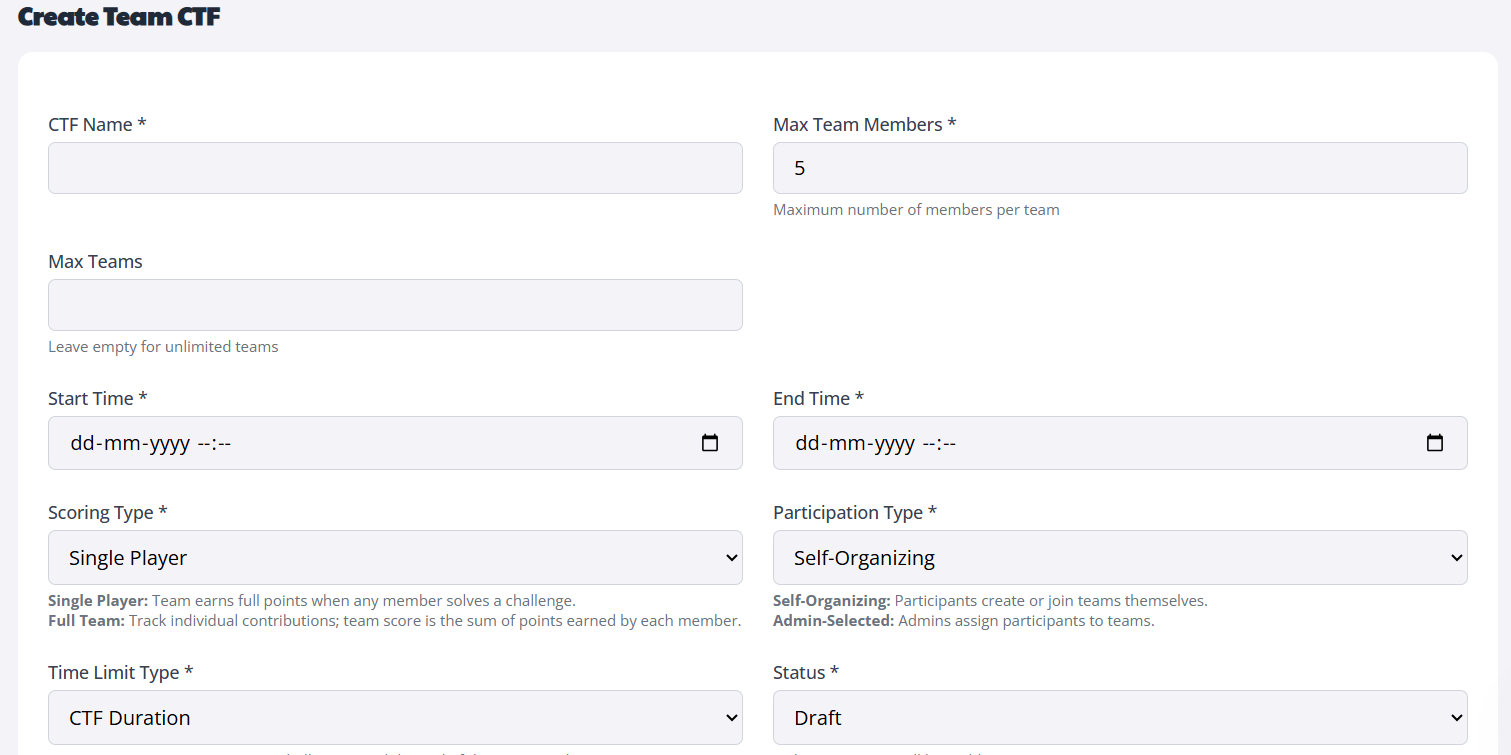 Admin enters configuration details like team size, scoring type, participation model, and schedule to create a team-based CTF.
Click **Save** once you’ve filled in the required details.
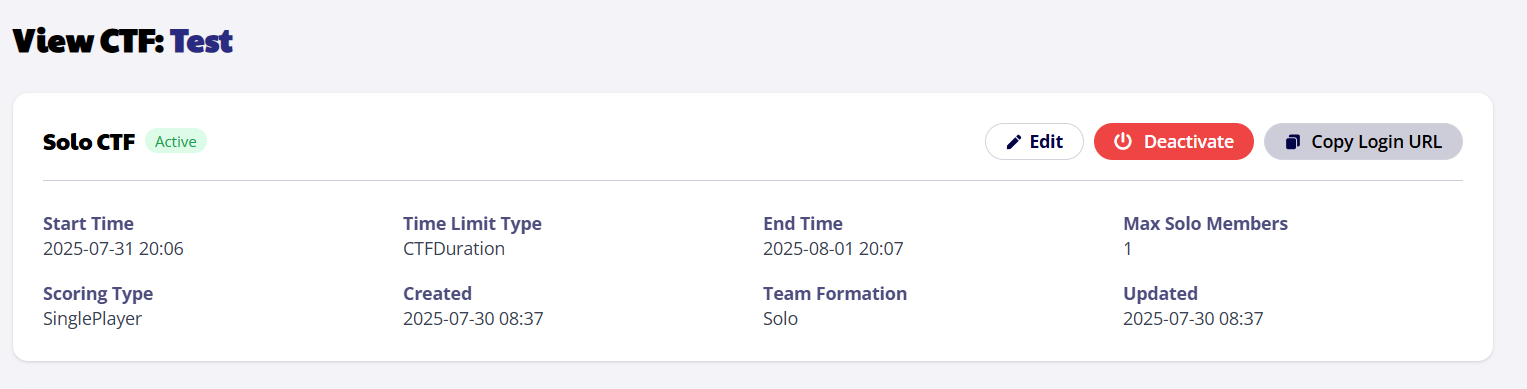
You’ll also see quick-action buttons for:
- **Edit** – Modify your CTF details
- **Deactivate** – Pause an active event
- **Copy Login URL** – Shareable link for participants to join directly
This view allows you to track the status of your CTF and quickly adjust settings before or during the event.
### **Manage Your Existing CTFs**
Once your CTF is created, it appears in the **All CTFs** dashboard. This section helps you view and manage all your active, draft, and ended events.
Each entry displays:
- **CTF Name**
- **Start & End Time**
- **Status**: Active, Inactive, Ended, or Draft
- **Type**: Defensive / Offensive / Mixed
- **Team Count**
- **Challenge Count**
- **Actions**: View, Edit, Clone, or Change Status
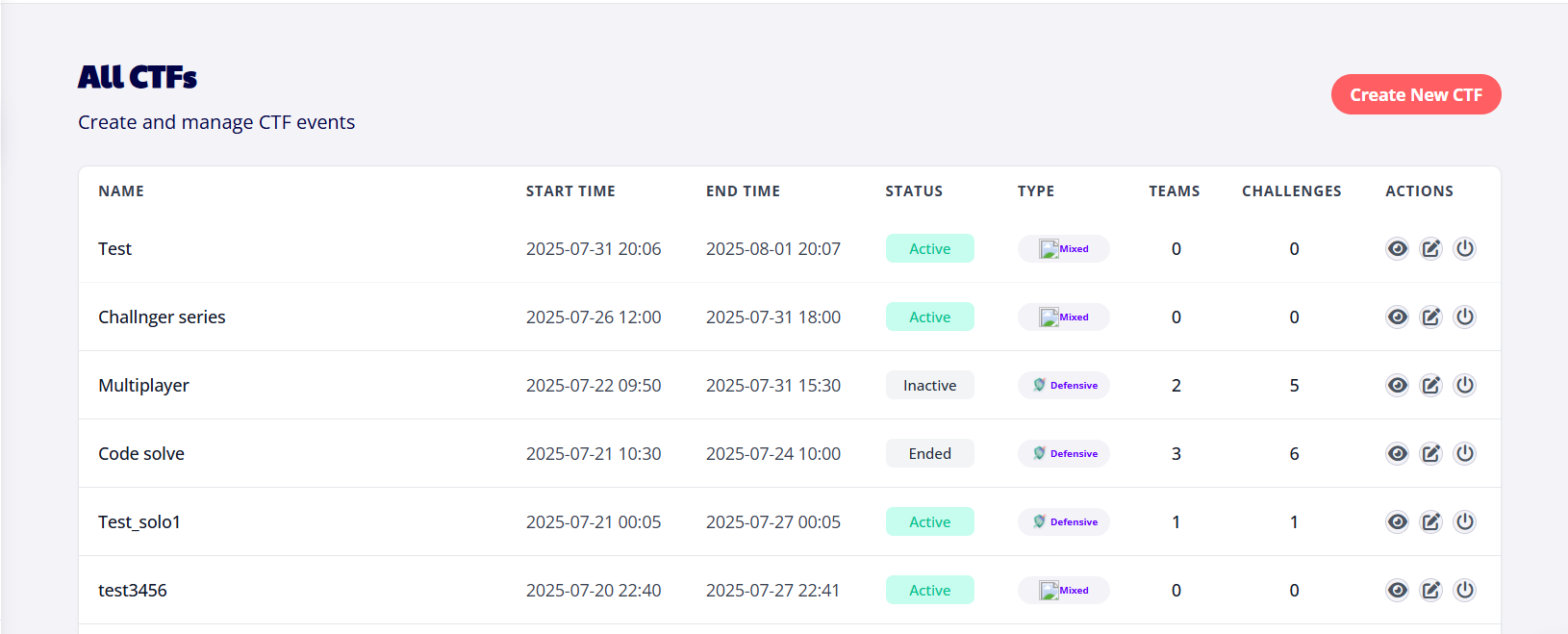 Table listing multiple CTF events with details like name, start/end time, status, type, number of teams, challenges, and action icons.
By following these steps, you can quickly set up and manage engaging CTF events on AppSecFlag whether for internal training, team building, or community-driven challenges.
- [Getting started](https://help.appsecengineer.com/getting-started?hsLang=en#main-content)
- [Welcome to AppSecEngineer](https://help.appsecengineer.com/getting-started?hsLang=en#welcome-to-appsecengineer)
- [ILT (Instructor Led Training)](https://help.appsecengineer.com/getting-started?hsLang=en#ilt-instructor-led-training)
- [Onboarding Guide](https://help.appsecengineer.com/getting-started?hsLang=en#onboarding-guide)
- [Platform Navigation](https://help.appsecengineer.com/getting-started?hsLang=en#platform-navigation)
- [Quick Start Guide](https://help.appsecengineer.com/getting-started?hsLang=en#quick-start-guide)
- [Integrations](https://help.appsecengineer.com/integrations?hsLang=en)
- [Sandbox](https://help.appsecengineer.com/sandbox?hsLang=en)
- [Achievement](https://help.appsecengineer.com/achievement?hsLang=en)
- [Roadmap](https://help.appsecengineer.com/roadmap?hsLang=en)
- [Interviews](https://help.appsecengineer.com/interviews?hsLang=en)
- [Course recommendations](https://help.appsecengineer.com/course-recommendations?hsLang=en)
- [AppSecFlag](https://help.appsecengineer.com/appsecflag?hsLang=en)
- [Team Manager](https://help.appsecengineer.com/team-manager?hsLang=en)
- [Creator Studio](https://help.appsecengineer.com/creator-studio?hsLang=en)
- [Onboarding Guide](https://help.appsecengineer.com/onboarding-guide?hsLang=en)
- [Certification Pricing](https://help.appsecengineer.com/certification-pricing?hsLang=en)
- [Tournaments](https://help.appsecengineer.com/tournaments?hsLang=en)
- [Bootcamps](https://help.appsecengineer.com/bootcamps?hsLang=en)
- [Hands On Labs](https://help.appsecengineer.com/hands-on-labs?hsLang=en)
- [Users & Teams](https://help.appsecengineer.com/users-teams?hsLang=en#main-content)
- [Users](https://help.appsecengineer.com/users-teams?hsLang=en#users)
- [Teams](https://help.appsecengineer.com/users-teams?hsLang=en#teams)
- [Challenges](https://help.appsecengineer.com/challenges?hsLang=en#main-content)
- [For individuals](https://help.appsecengineer.com/challenges?hsLang=en#for-individuals)
- [For Admins](https://help.appsecengineer.com/challenges?hsLang=en#for-admins)
- [Report](https://help.appsecengineer.com/report?hsLang=en#main-content)
- [User / Team Level Reports](https://help.appsecengineer.com/report?hsLang=en#user-team-level-reports)
- [Feature Level Reports](https://help.appsecengineer.com/report?hsLang=en#feature-level-reports)
- [Assignments](https://help.appsecengineer.com/assignments?hsLang=en#main-content)
- [For Individuals](https://help.appsecengineer.com/assignments?hsLang=en#for-individuals)
- [For Admins](https://help.appsecengineer.com/assignments?hsLang=en#for-admins)
- [Learning Journeys](https://help.appsecengineer.com/learning-journeys?hsLang=en)
- [Certifications](https://help.appsecengineer.com/certifications?hsLang=en)
- [Pricing](https://help.appsecengineer.com/pricing?hsLang=en#main-content)
- [Trial & Queries](https://help.appsecengineer.com/pricing?hsLang=en#trial-queries)
- [Subscription Cancellation](https://help.appsecengineer.com/subscription-cancellation?hsLang=en)
- [Home](https://www.appsecengineer.com/)
- [Resources](https://www.appsecengineer.com/enterprises/blogs)
- [Course Library](https://www.appsecengineer.com/enterprises/courses)
[](https://www.appsecengineer.com/)
[mailto:email@email.com](mailto:email@email.com)
Copyright © 2026,