
Step 1: Navigate to "My Assignments"
- Locate and click on the "My Assignments" option in the left menu.
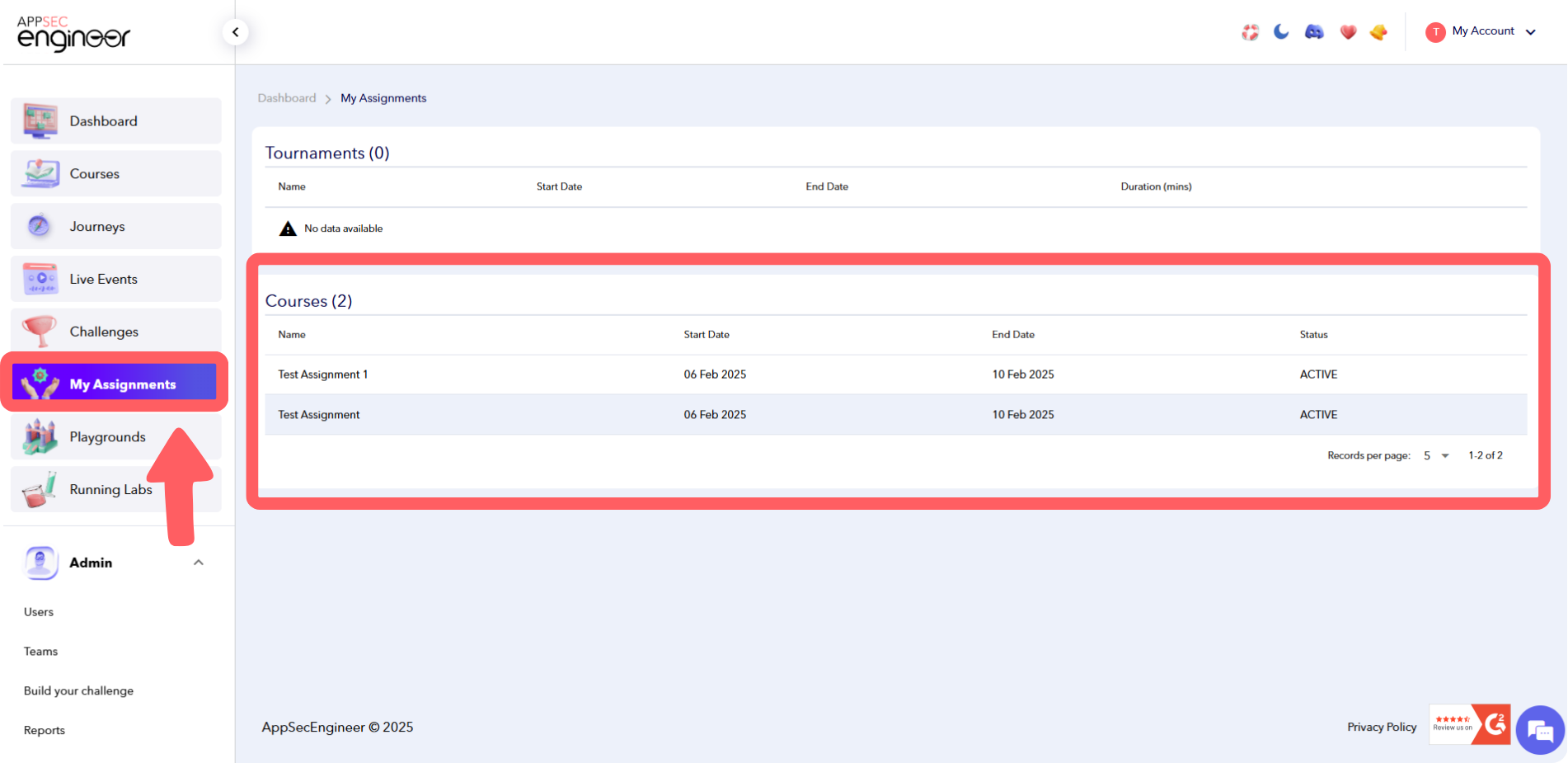 This screenshot shows the user locating and clicking on the 'My Assignments' option in the left-side menu of the AppSecEngineer platform to view or manage their assignments.
If your assignment is a tournament, follow our step-by-step guide on Taking a Tournament That Was Assigned to Me to understand how to start and complete it efficiently
Step 2: View Assessments by Category
- A list of all assessments will appear, organized category-wise.
- Browse through the categories to find the assignment you need.
Step 3: Select an Assignment
- Click on the desired assignment from the list to begin.
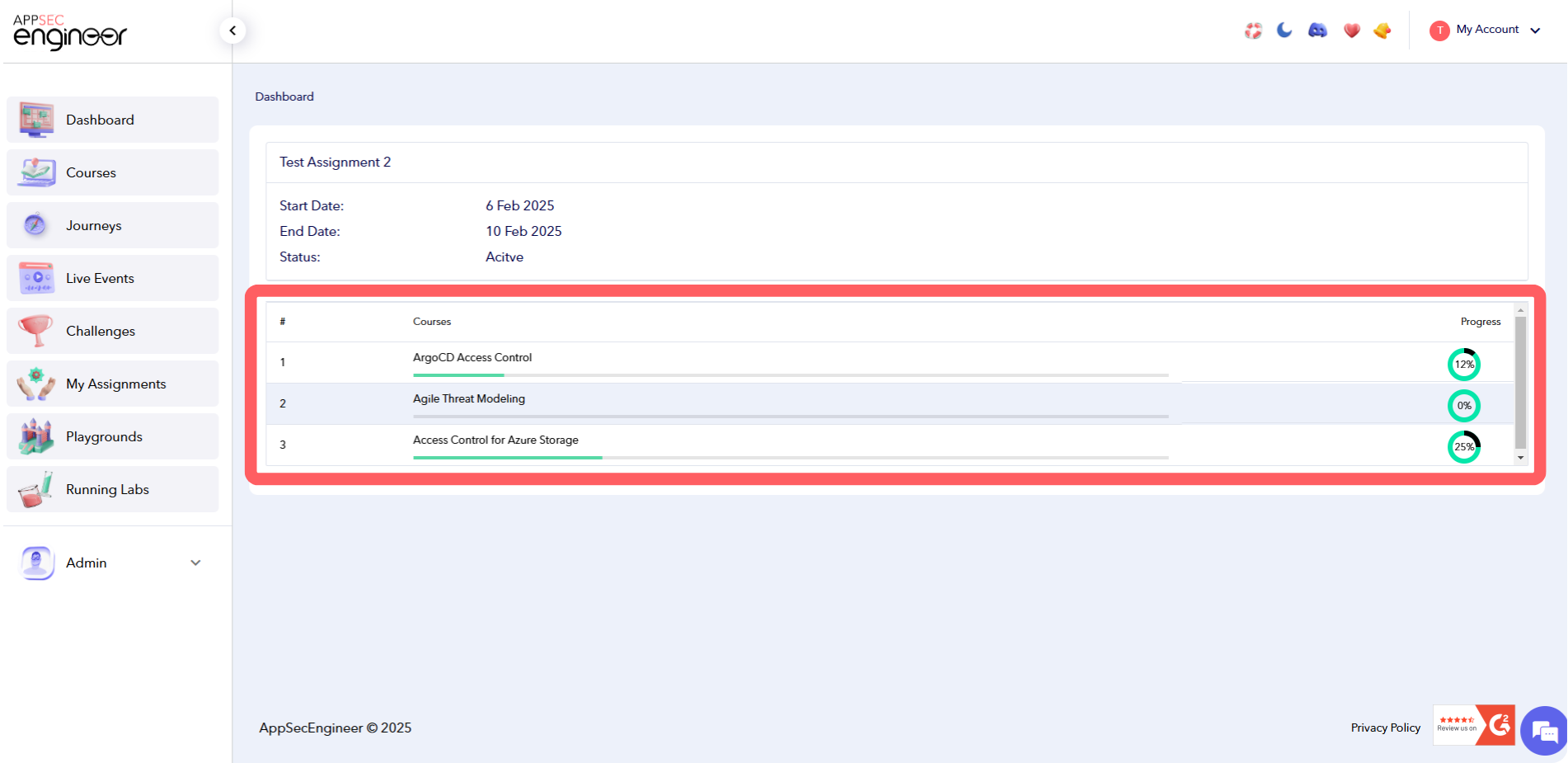 This screenshot shows the user clicking on a specific assignment from the list in the AppSecEngineer platform to begin working on or reviewing the assignment.
Step 4: Review Instructions
- Before starting, instructions for the assignment will be displayed.
- Read the instructions carefully to understand the requirements.
Step 5: Start the Assignment
- Once you’re ready, click on "Start" to begin the assignment.
If your assignment is a learning course, check out our guide on Taking a Course That Was Assigned to Me to get started with your training.