
Steps to Delete a Tournament
-
Access the Tournaments Section:
-
Go to the Dashboard > Sidebar Menu > Admin > Tournaments.
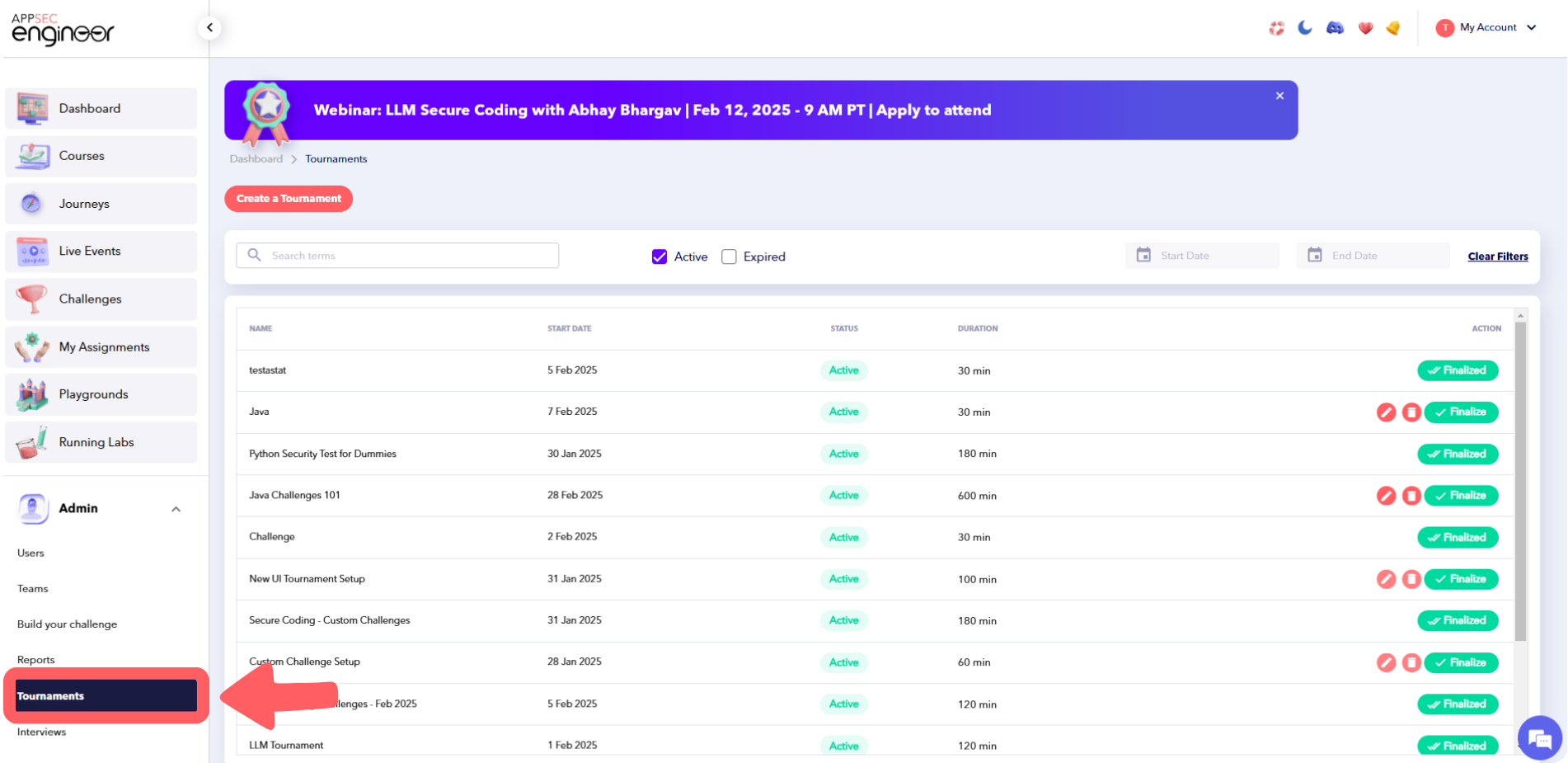 This screenshot highlights the admin dashboard of the AppSecEngineer Learning Platform. The image shows a user clicking on the 'Tournament' section within the dashboard interface. The dashboard is designed for easy navigation and management, providing users with a seamless experience when interacting with platform features such as tournaments.
-
-
Locate the Tournament:
-
Scroll down to the list of tournaments or use the Search Bar to find the specific tournament you want to delete.
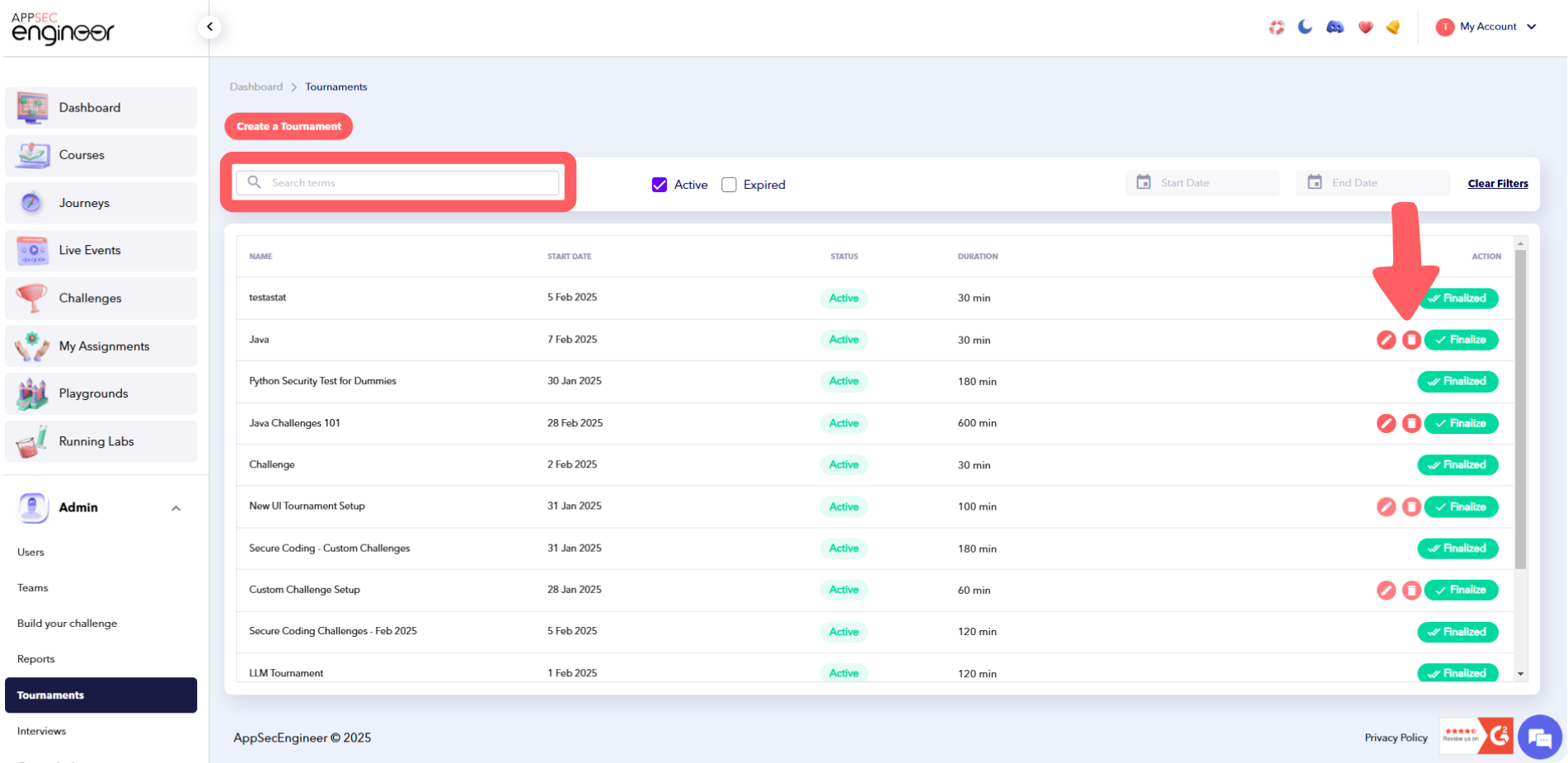 This screenshot displays the admin dashboard on the AppSecEngineer Learning Platform, showing a search function being used to find a specific tournament. The search bar is visible at the top of the interface, with a user typing in the name or details of a tournament to quickly locate it. This feature allows administrators to efficiently manage and access tournament-related content within the platform
Track assignment impacts of tournaments through Reports about Assignments
-
-
Delete the Tournament:
-
Under the Actions column, click on the Bin Icon (Delete) corresponding to the tournament.
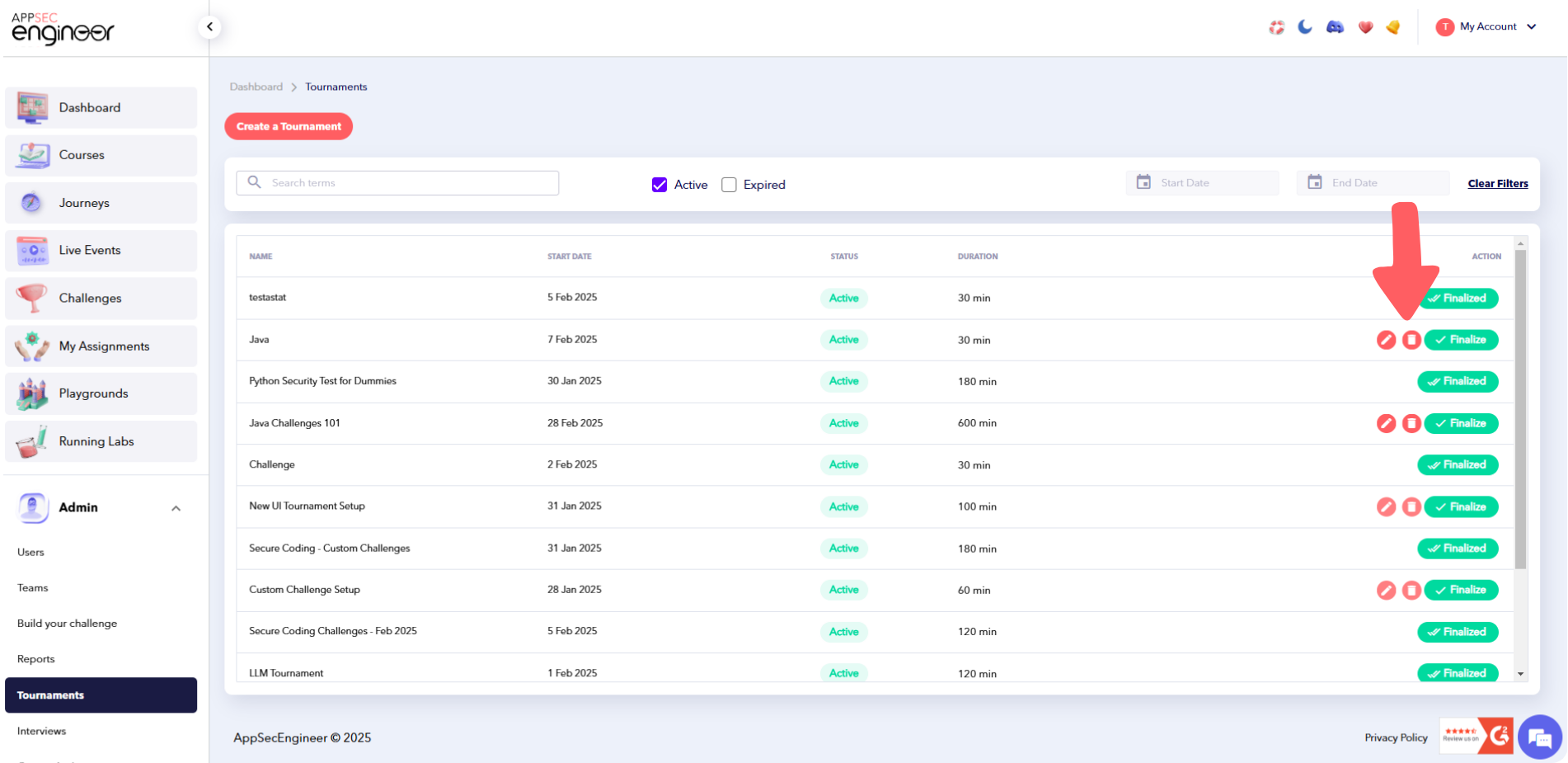 This screenshot shows the AppSecEngineer Learning Platform admin dashboard, where a user clicks on the Bin Icon (Delete) under the Actions column next to a specific tournament. The Bin Icon represents the option to delete the tournament from the platform. This feature enables administrators to manage and remove tournaments easily from the platform interface.
-
-
Confirm Deletion:
-
A confirmation popup will appear.
-
Click Confirm to permanently delete the tournament.
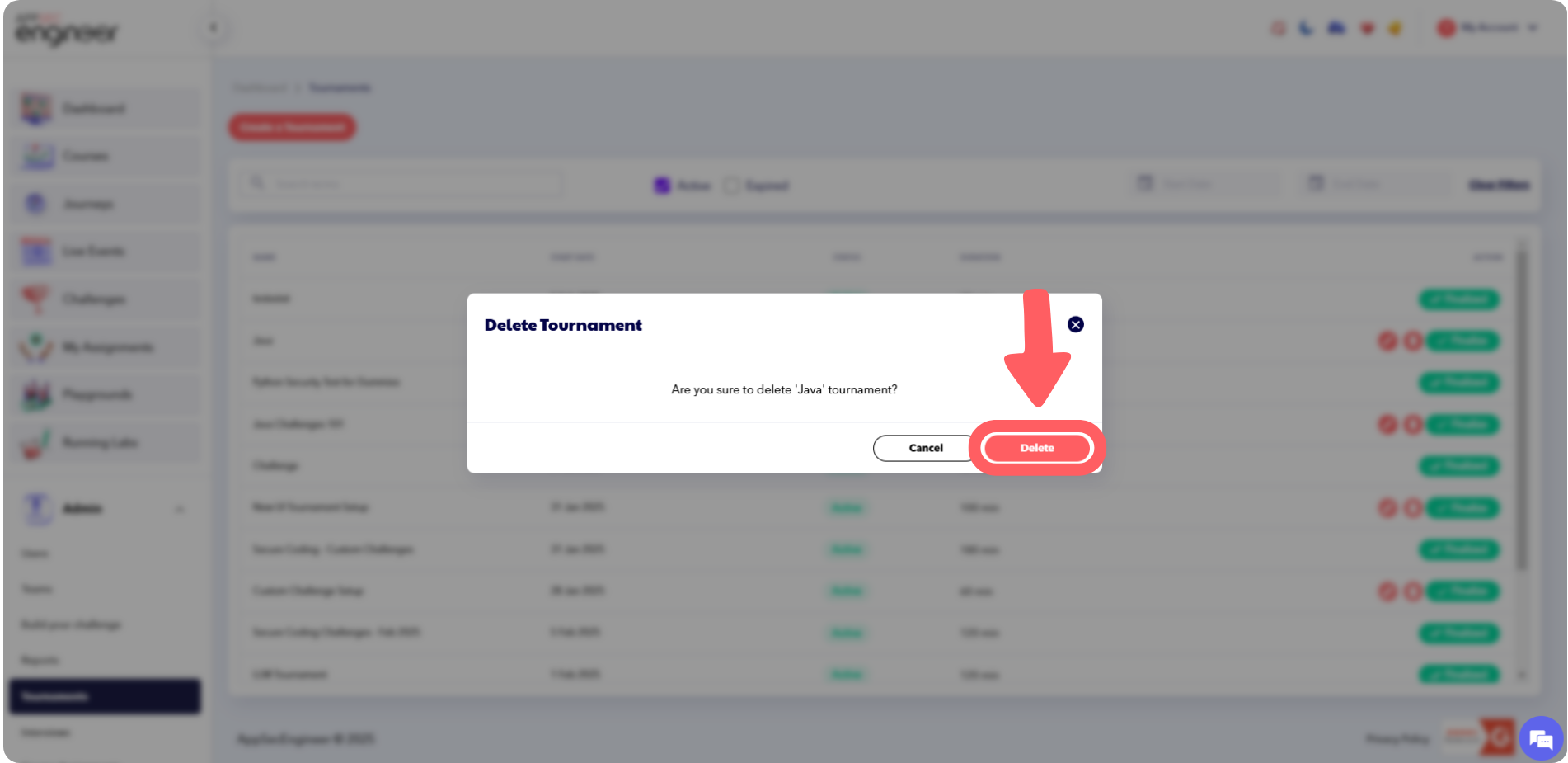 This screenshot captures the moment when a user clicks the 'Confirm' button to permanently delete a tournament in the AppSecEngineer Learning Platform. The 'Confirm' button is part of the final step in the deletion process, ensuring that the action is intentional before removing the tournament from the platform permanently.
-
Also learn how to set up new tournaments in our guide on Create a Tournament.
Important Notes
-
Deleting a tournament is a permanent action and cannot be undone.
-
Ensure you no longer need the tournament before confirming deletion.
-
Consider exporting any relevant data or reports related to the tournament before deleting.
-
If you are unable to delete a tournament, it is probably because its a "finalized tournament" or because its an ongoing one.