
Overview
AppSecFlag’s Admin Dashboard offers a central control panel for managing Capture The Flag (CTF) events, teams, users, and challenge content. It provides real-time analytics for enterprise-wide secure engineering initiatives.
Accessing the Admin Dashboard
Step 1: Log into your AppSecFlag admin account.
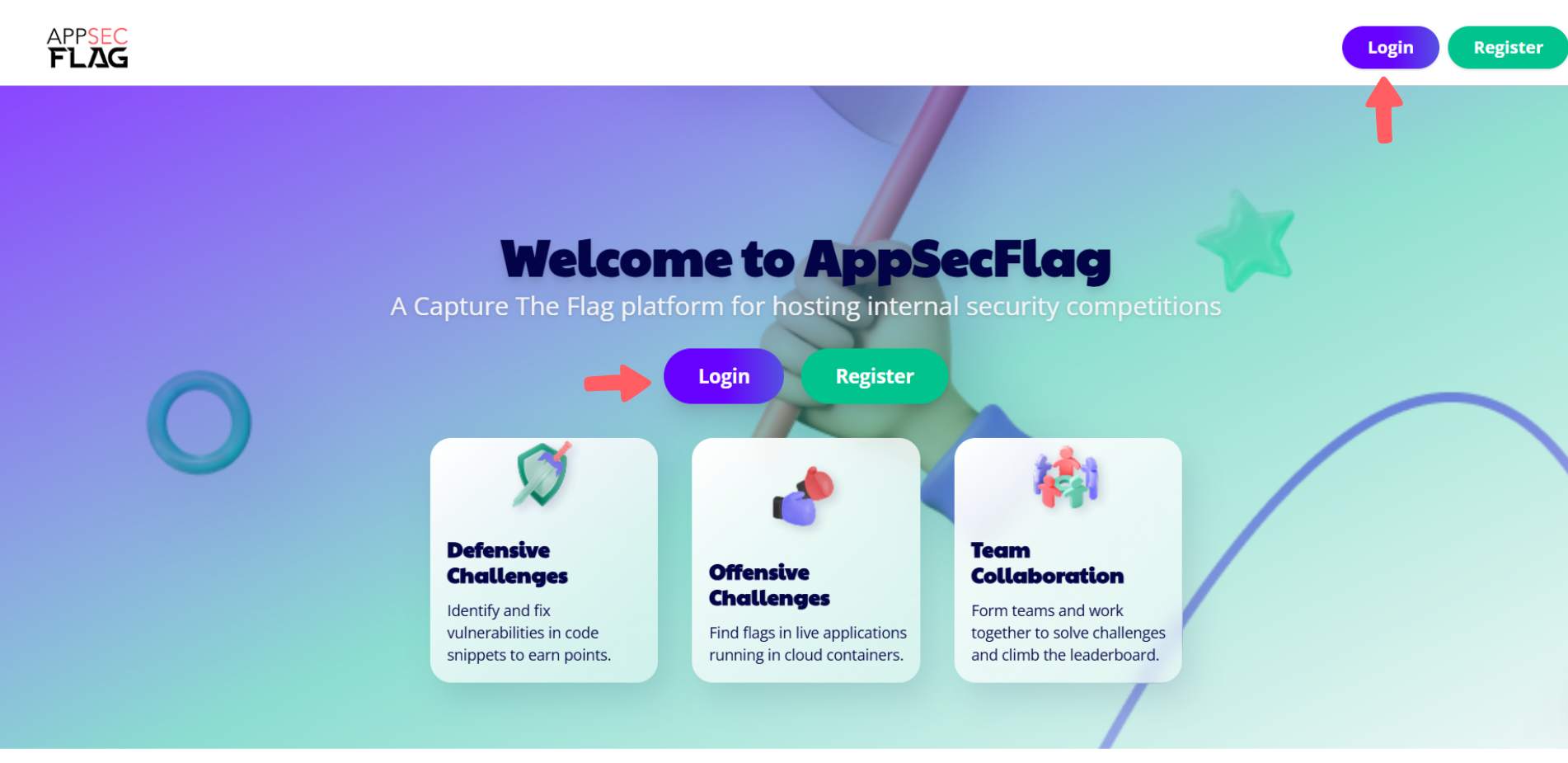 Login page highlighting key AppSecFlag features like offensive and defensive challenges. Ask ChatGPT
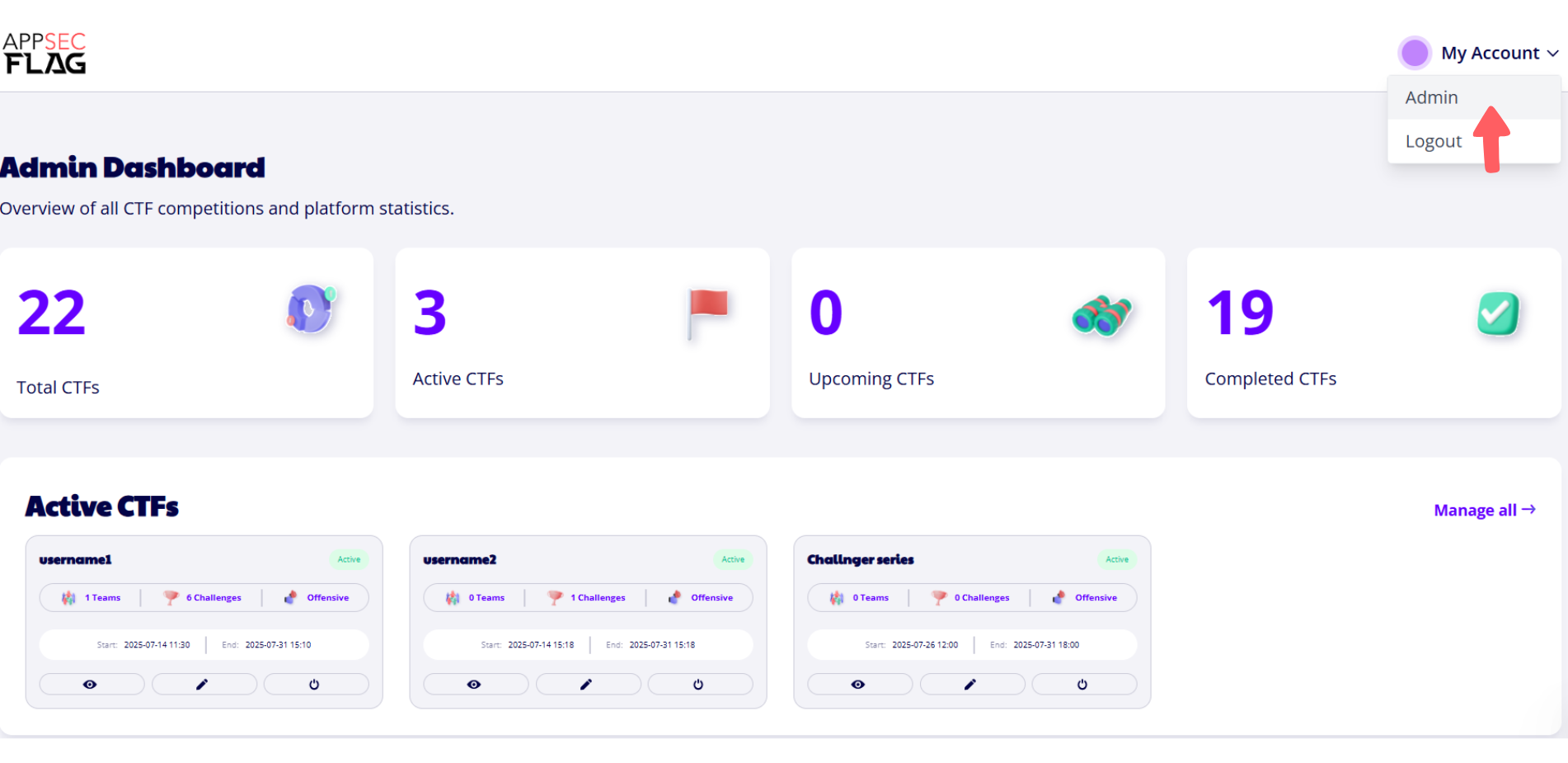 AppSecFlag Admin Dashboard
Admin Navigation Sections Explained
You’ll find five key sections on the admin dashboard panel:
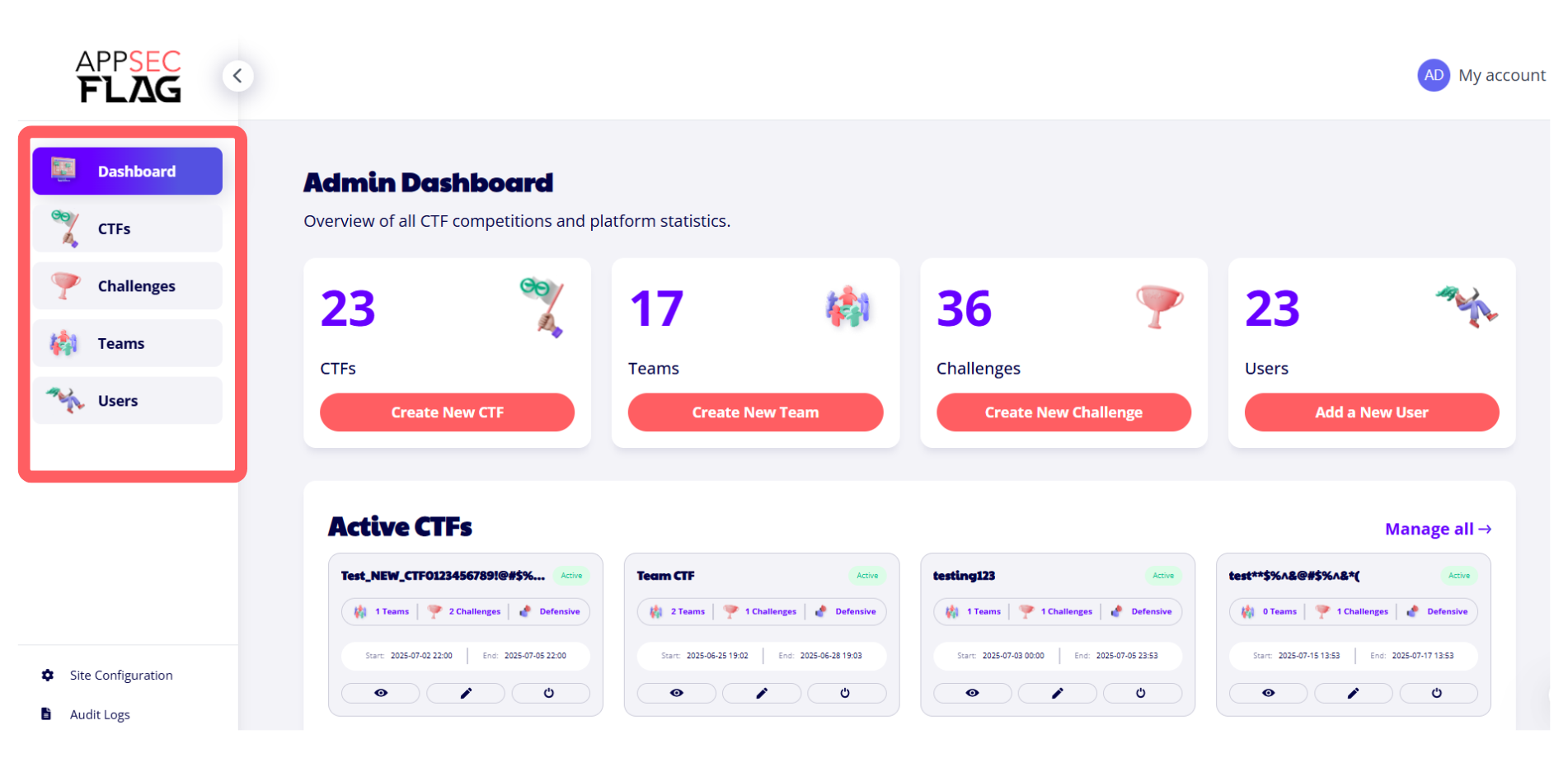 The admin panel sidebar provides easy access to key sections including Dashboard, CTFs, Challenges, Teams, and Users, enabling efficient management of the AppSecFlag platform.
1. Dashboard
-
A consolidated view of analytics:
-
Total and active CTFs
-
Team and individual player performance
-
Manager activity
-
Participation heatmaps
-
-
Use this for high-level monitoring and decision-making.
2. CTFs
-
Create, edit, and manage Capture The Flag events.
-
Choose between Solo or Team formats.
-
Schedule upcoming CTFs or archive completed ones.
3. Challenges
-
Add new challenges or update existing ones.
-
Set difficulty levels, categories, and scoring criteria.
-
Align challenge tracks to onboarding, cloud maturity, or compliance themes.
4. Teams
-
Create and manage team structures.
-
View team-wise progress and challenge success rates.
5. Users
-
View, onboard, or manage individual user accounts.
-
Assign users to teams and track skill development.